Create Address Lookup integration
This article will show how to create an address lookup integration using ArcGIS
ArcGIS allows us to search for addresses for free, but once we save an address into our database, we need to consume a credit, which is a paid-for service.
Description
ArcGIS exposes several REST baseAPIs. We will be configuring two integrations, one to search for the address and one for fetching the address and consuming a credit.
1. Variables
We want to store the inbound an outbound requests for both the Search and Save APIs so that we can consume them during execution. For this, we need to create some Integration Variables
From within the ProcessFactorial Portal, browse to the Integrations Tab, click on Variables and click New
Create each of the following variables
| Name | Description | Data Type | Sample JSON |
|---|---|---|---|
| Forms Address Search Request | Request send to ArcGIS | JSON | {} |
| Forms Address Search Response | Response back from ArcGIS | JSON | {"suggestions":[{"isCollection":false,"magicKey":"dHA9MCN0dj0xZWJkOWY4YiNsb2M9NzIxMzA5MTkjbG5nPTQxI2xicz0xMDk6OTI3MjY2MjcjbG49V29ybGQ=","text":"Main Street N, Ōhingaiti, Manawatu-Wanganui, 4785, NZL"}]} |
| Forms Address Save Request | Request sent to ArcGIS | JSON | {} |
| Forms Address Save Response | Response back from ArcGIS | JSON | {"candidates":[{"address":"Main Drain Road, Glen Oroua, Manawatu-Wanganui, 4473","attributes":{"Address":"Main Drain Road","City":"Glen Oroua","Country":"NZL","District":"","Postal":"4473","Region":"Manawatu-Wanganui","SubRegion":"Manawatu"},"extent":{"xmax":175.412615611711,"xmin":175.410615611711,"ymax":-40.331319790187,"ymin":-40.333319790187},"location":{"x":175.411615611711,"y":-40.332319790187},"score":100}],"spatialReference":{"latestWkid":4326,"wkid":4326}} |
2: The Search API Integration Workflow
The Suggest api provided by ArcGIS allows us to search for an address:
https://geocode.arcgis.com/arcgis/rest/services/World/GeocodeServer/suggest
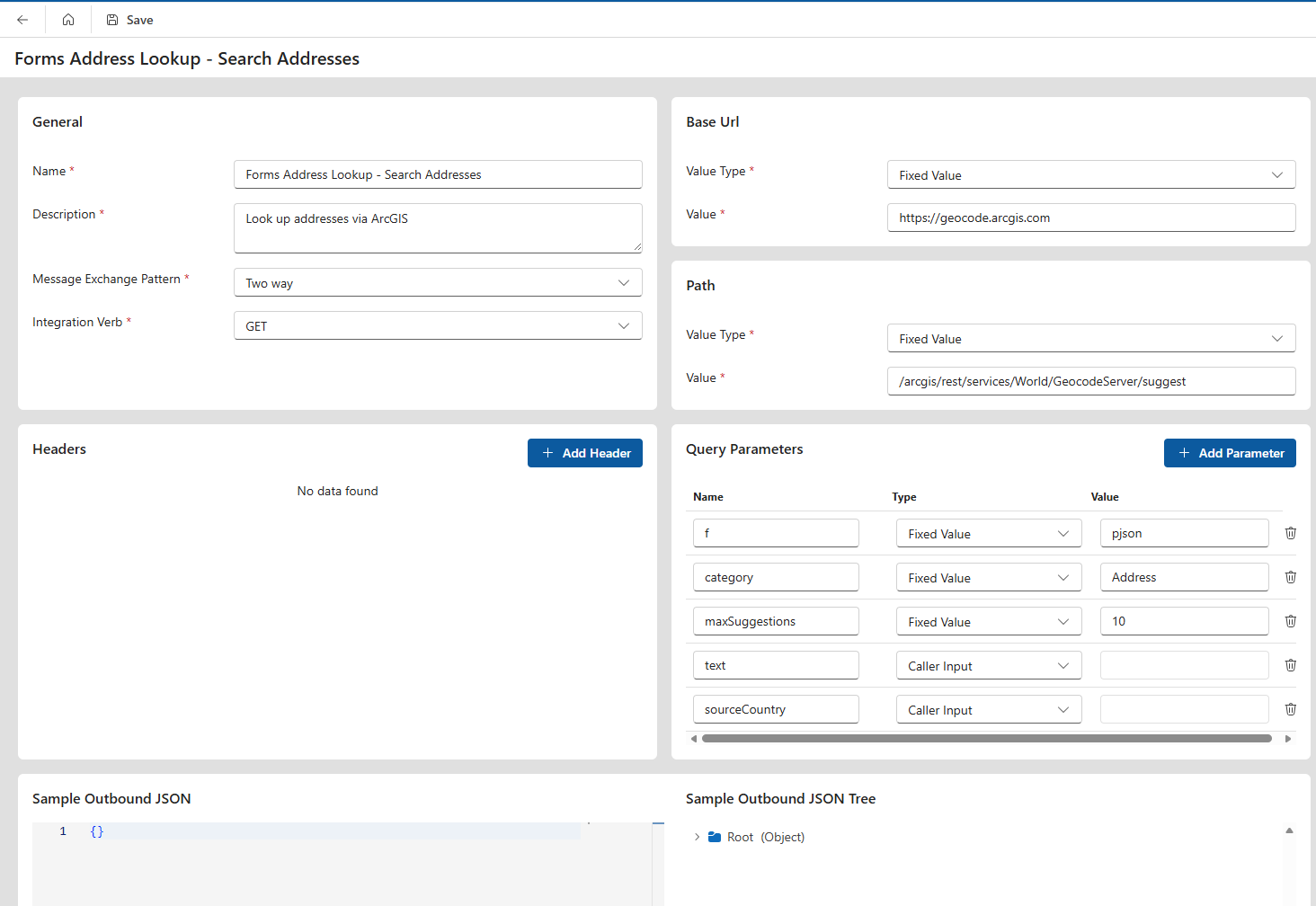
Integration Service Definition
From within the ProcessFactorial Portal, browse to the Integrations Tab, click on Service Definitions and click New
Fill in the following details
| Field | Purpose | Example Value |
|---|---|---|
| Name | A friendly name to identify this integration | Forms Address Lookup - Search Addresses |
| Description | A one paragraph description on this integration | Look up addresses via ArcGIS |
| Message Exchange Pattern | Because we want to call an API and receive data back, set this to Two Way | Two Way |
| Integration Verb | GET, PUT, POST, DELETE, etc | GET |
| Base URL | Fixed Value and "https://geocode.arcgis.com" | |
| Path | Fixed Value and "/arcgis/rest/services/World/GeocodeServer/suggest" | |
| Headers | No headers are needed for this specific integration | |
| Query Parameters | Some of these parameters are pre-configured (Type = Value) and others are dynamic (Type = Caller Input) | see Query Parameters for Search API below |
| Sample Output JSON | This particular address endpoint does not take a request body, so we provide an empty JSON object {}. The Sample Output JSON Tree will automatically update. |
{} |
Query Parameters for Search API
| Name | Data Type | Type | Value | Comments |
|---|---|---|---|---|
| f | String | Fixed Value | pjson | Default value required by ArcGIS |
| category | String | Fixed Value | Address | Default value required by ArcGIS |
| maxSuggestions | String | Fixed Value | 10 | Default value required by ArcGIS. Specifies how many addresses to return during the search. 10 is an optimal number |
| text | String | Caller Input | search | This field will be dynamically updated on the ProcessFactorial Form. The label 'search' is the name of the parameter that we will use on the Form Event |
| sourceCountry | String | Caller Input | country | This field will be dynamically updated on the ProcessFactorial Form The label 'country' is the name of the parameter that we will use on the Form Event |
Integration Workflow
From within the ProcessFactorial Portal, browse to the Integrations Tab, click on Integration Workflows and click New
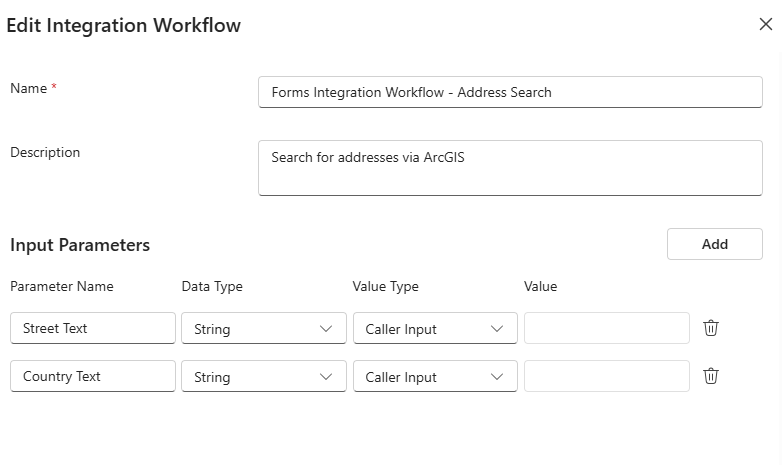
Fill in the following details
| Field | Purpose | Example Value |
|---|---|---|
| Name | A friendly name to identify this integration workflow | Forms Integration Workflow - Address Search |
| Description | A one paragraph description on this integration | Search for addresses via ArcGIS |
| Input Parameters | These are the input parameters into the Integration Workflow, that we will capture from the ProcessFactorial form | see Input Parameters below |
Input Parameters
| Name | Data Type | Type | Value | Comments |
|---|---|---|---|---|
| Street Text | String | Caller Input | Search string for the address being searched for | |
| Country Text | String | Caller Input | ISO2 code for the country where the address is being searched for |
In the canvas that opens after creating the Integration Workflow, add the following Actions by clicking on the + icon
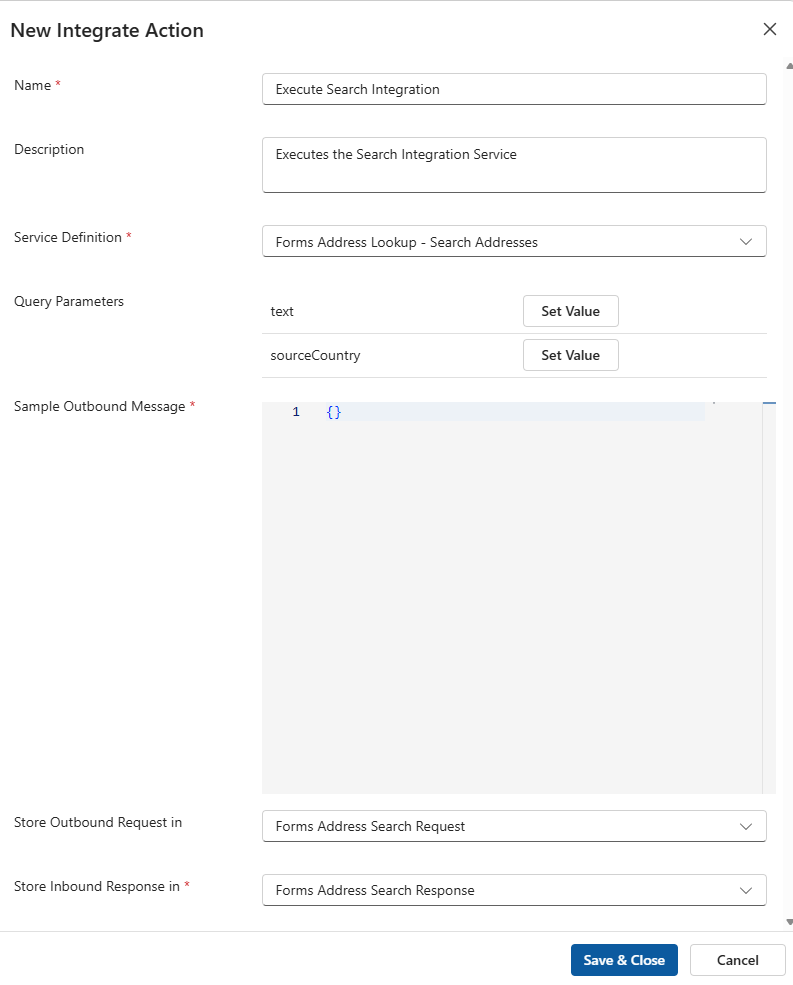
Create Integrate Action
| Field | Purpose | Example Value |
|---|---|---|
| Name | A friendly name to identify this action | Execute Search Integration |
| Description | A one paragraph description on this integration | Executes the Search Integration Service |
| Service Definition | The Integration Service that will be executed | Select the Forms Address Lookup - Search Addresses Service Definition from above. This will auto-create the Query Parameters |
| Sample Outbound Message | There is no request JSON object required for ArcGIS, so an empty JSON object is all we need | {} |
| Store Outbound Request in | The outbound request is stored in a variable we created earlier | Forms Address Search Request |
| Store Outbound Response in | The inbound response is stored in a variable we created earlier | Forms Address Search Response |
For each of the Query Parameters, map them to an Integration Workflow Parameter as in the below table
| Name | Source Type | Source |
|---|---|---|
| text | Integration Workflow Parameter | Street Text |
| sourceCountry | Integration Workflow Parameter | Country Text |
Create Return Data Action
In the canvas that opens after creating the Integration Workflow, add the following Actions by clicking on the + icon after the Integrate action from above
| Field | Purpose | Example Value |
|---|---|---|
| Name | A friendly name to identify this action | Return Search Integration Data |
| Description | A one paragraph description on this integration | Return Search Integration Data to the ProcessFactorial Form |
| Message to be returned | What type of message should be returned | New Message |
In the Messages section, add a new message with the following values
| Field | Purpose | Example Value |
|---|---|---|
| Name | A friendly name to identify this action | Return Data Address |
| Caller Type | What type of service will consume this integration response | Form |
| Value | A sample output that will be consumed by the caller | {"id":"formPayload","keyFieldName":"key","referenceRecordsJSON":[{"key":"somekey1","value":"Some Value 1"},{"key":"somekey2","value":"Some Value 2"}],"valueFieldName":"value"} |
Once the new Action is saved, right click it and select Configure.
On the dialog, expand the "Root (Object)" section, then for each of the fields, map them to the value that is returned by ArcGIS. This is done by adding a new Map Field Action
| Name | Source Type | Source | Select Source Context |
|---|---|---|---|
| id | Fixed Value | id |
|
| keyFieldName | Fixed Value | key |
|
| referenceRecordJSON | Stored Variable | Forms Address Search ResponseForms Address Search Response | Two different Field Mapping Actions: key = root -> suggestions -> [0] -> magicKey value = root -> suggestions -> [0] -> text |
| valueFieldName | Fixed Value | value |
This is an example for key
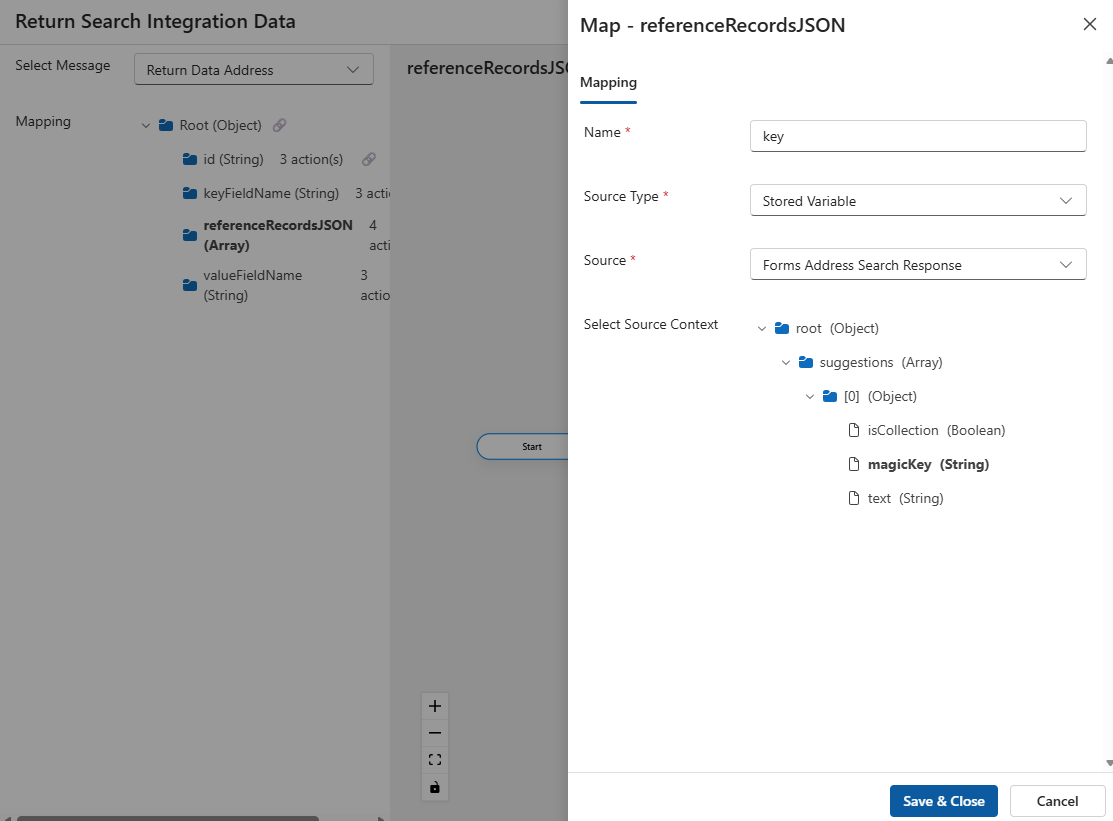
TODO: Missing Context on the form to map the array location of referenceRecordJSON
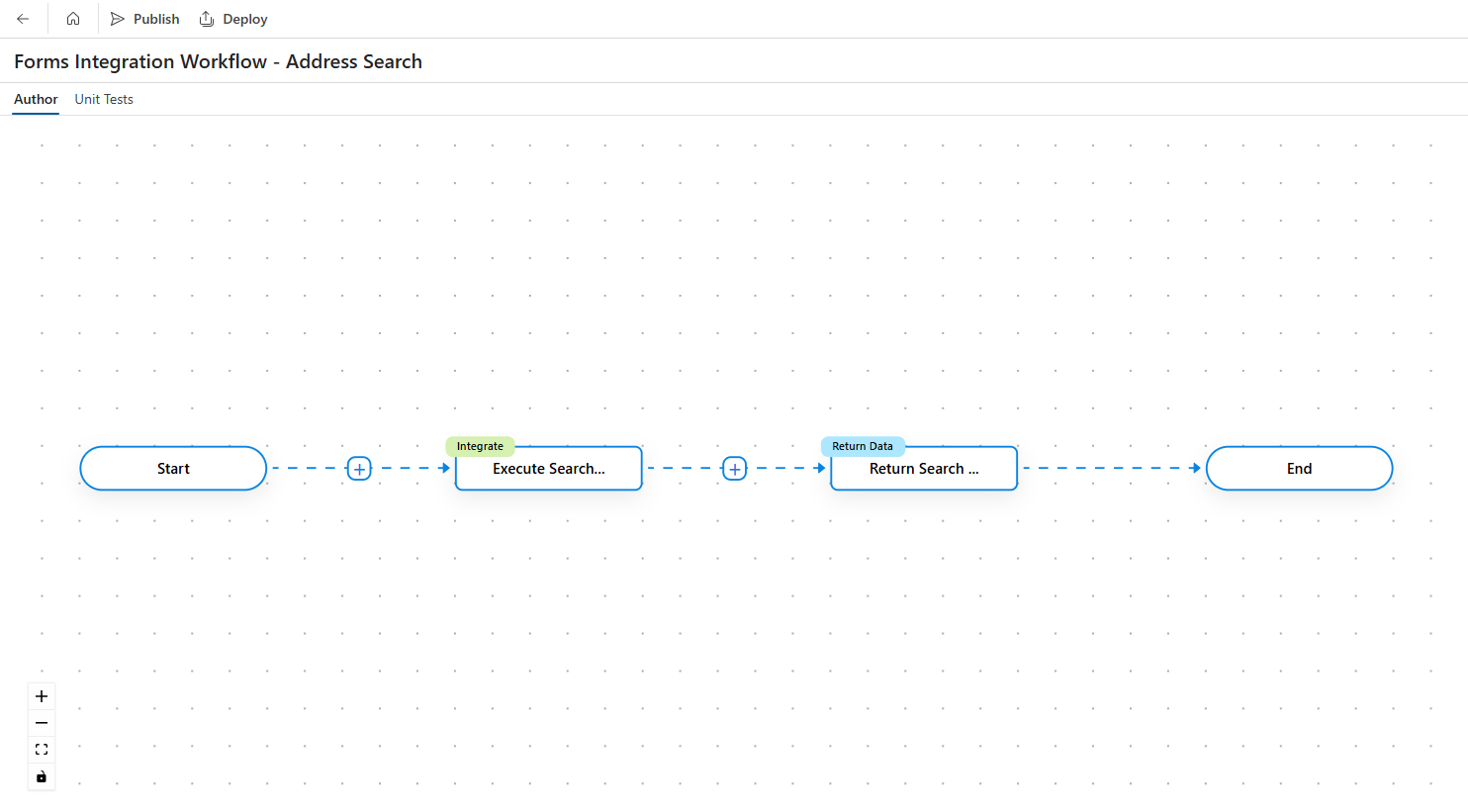
The final canvas should look something like this:
3: The Save Address API
The Find Address Candidates api provided by ArcGIS returns the full address object in its parts, such as line 1, line 2 and city, and consumes a paid-for credit from ArcGIS
https://geocode.arcgis.com/arcgis/rest/services/World/GeocodeServer/findAddressCandidates
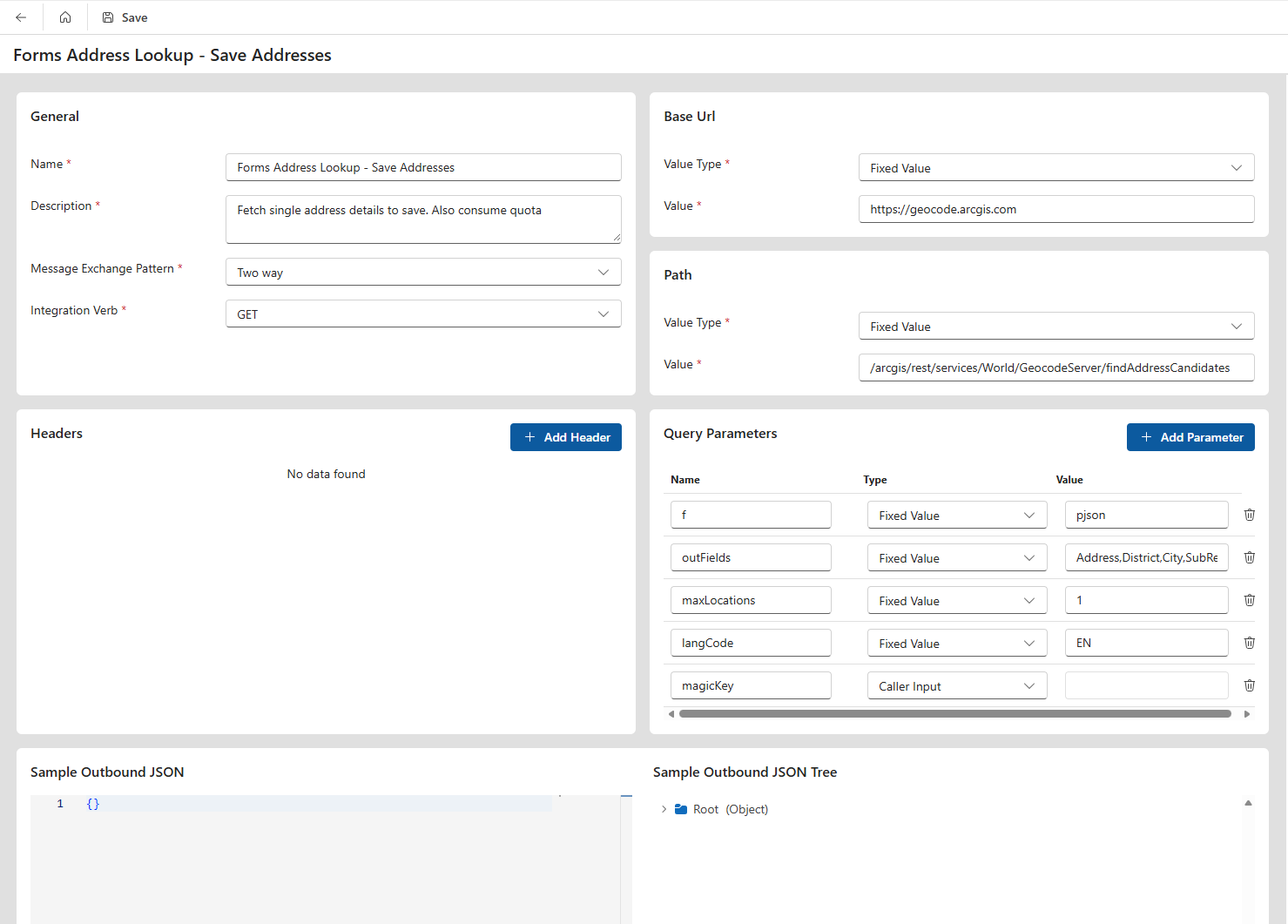
Creating the Integration Service Definition
From within the ProcessFactorial Portal, browse to the Integrations Tab, click on Service Definitions and click New
Fill in the following details
| Field | Purpose | Example Value |
|---|---|---|
| Name | A friendly name to identify this integration | Forms Address Lookup - Save Addresses |
| Description | A one paragraph description on this integration | Fetch single address details to save. Also consume quota |
| Message Exchange Pattern | Because we want to call an API and receive data back, set this to Two Way | Two Way |
| Integration Verb | GET, PUT, POST, DELETE, etc | GET |
| Base URL | Fixed Value and "https://geocode.arcgis.com" | |
| Path | Fixed Value and "/arcgis/rest/services/World/GeocodeServer/findAddressCandidates" | |
| Headers | No headers are needed for this specific integration | |
| Query Parameters | Some of these parameters are pre-configured (Type = Value) and others are dynamic (Type = Digital Journey Form) | see Query Parameters for Save Address API below |
| Sample Output JSON | This particular address endpoint does not take a request body, so we provide an empty JSON object {}. The Sample Output JSON Tree will automatically update. |
{} |
Query Parameters for Save Address API
| Name | Data Type | Type | Value | Comments |
|---|---|---|---|---|
| f | String | Value | pjson | Default value required by ArcGIS |
| outFields | String | Value | Address,District,City,SubRegion,Region,Postal,Country | List of fields to be returned in the repsonse |
| maxLocations | String | Value | 1 | Maximum number of locations to be returned in the response |
| langCode | String | Value | EN | Language for the returned results |
| magicKey | String | Caller Input | key | This field will be dynamically updated on the ProcessFactorial Form. The label 'key' is the name of the parameter that we will use on the Form Event |
Integration Workflow
From within the ProcessFactorial Portal, browse to the Integrations Tab, click on Integration Workflows and click New
Fill in the following details
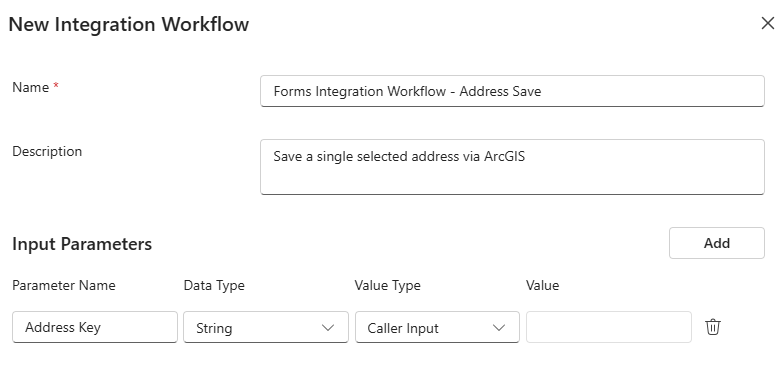
| Field | Purpose | Example Value |
|---|---|---|
| Name | A friendly name to identify this integration workflow | Forms Integration Workflow - Address Save |
| Description | A one paragraph description on this integration | Save a single selected address via ArcGIS |
| Input Parameters | These are the input parameters into the Integration Workflow, that we will capture from the ProcessFactorial form | see Input Parameters below |
Input Parameters
| Name | Data Type | Type | Value | Comments |
|---|---|---|---|---|
| Address Key | String | Caller Input | Magic Key that ArcGIS uses as the unique identifier for a specific address |
In the canvas that opens after creating the Integration Workflow, add the following Actions by clicking on the + icon
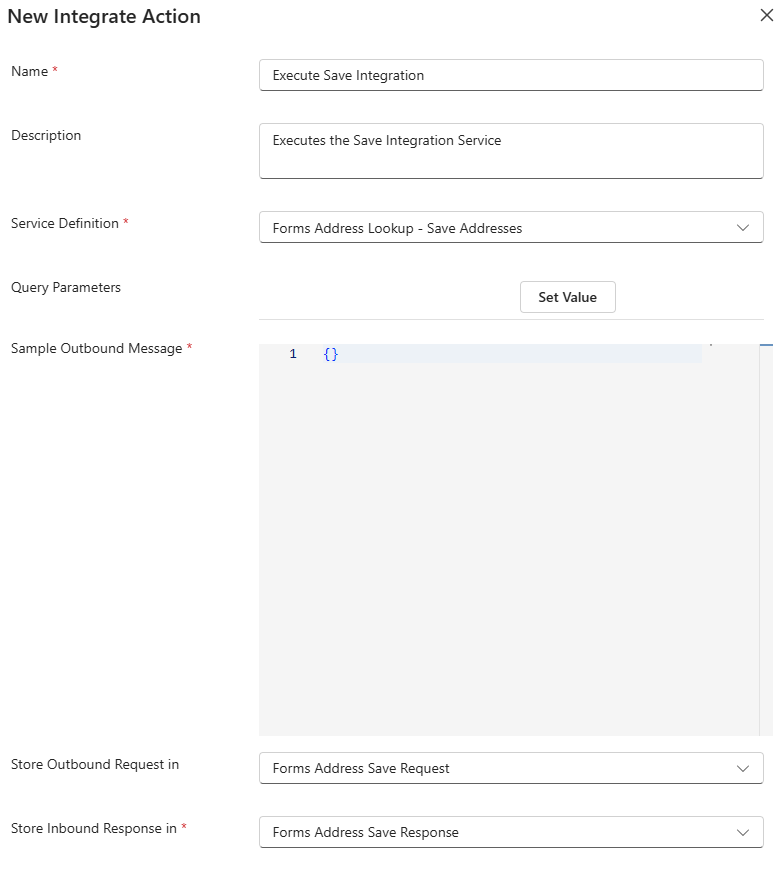
Create Integrate Action
| Field | Purpose | Example Value |
|---|---|---|
| Name | A friendly name to identify this action | Execute Save Integration |
| Description | A one paragraph description on this integration | Executes the Save Integration Service |
| Service Definition | The Integration Service that will be executed | Select the Forms Address Lookup - Save Addresses Service Definition from above. This will auto-create the Query Parameters |
| Sample Outbound Message | There is no request JSON object required for ArcGIS, so an empty JSON object is all we need | {} |
| Store Outbound Request in | The outbound request is stored in a variable we created earlier | Forms Address Save Request |
| Store Outbound Response in | The inbound response is stored in a variable we created earlier | Forms Address Save Response |
For each of the Query Parameters, map them to an Integration Workflow Parameter as in the below table
| Name | Source Type | Source |
|---|---|---|
| magicKey | Integration Workflow Parameter | Address Key |
Create Return Data Action
In the canvas that opens after creating the Integration Workflow, add the following Actions by clicking on the + icon after the Integrate action from above
| Field | Purpose | Example Value |
|---|---|---|
| Name | A friendly name to identify this action | Return Save Integration Data |
| Description | A one paragraph description on this integration | Return Save Integration Data to the ProcessFactorial Form |
| Message to be returned | What type of message should be returned | New Message |
In the Messages section, add a new message with the following values | Field | Purpose | Example Value | | ------------------------------------ | --------------------------------------------------------------------------------------------------------------- | --------------------------------------------------------------------------------- | | Name| A friendly name to identify this action | Return Full Address| | Caller Type| What type of service will consume this integration response| Form| | Value | A sample output that will be consumed by the caller| {"address":"address","city":"city","district":"district","latitude":0,"line1":"line1","longitude":0,"postcode":"postcode","region":"region","subregion":"subregion"}|
Once the new Action is saved, right click it and select Configure.
On the dialog, expand the "Root (Object)" section, then for each of the fields, map them to the value that is returned by ArcGIS. This is done by adding a new Map Field Action
| Name | Source Type | Source | Select Source Context |
|---|---|---|---|
| address | Stored Variable | Forms Address Save Response | root -> candidates -> [0] -> address |
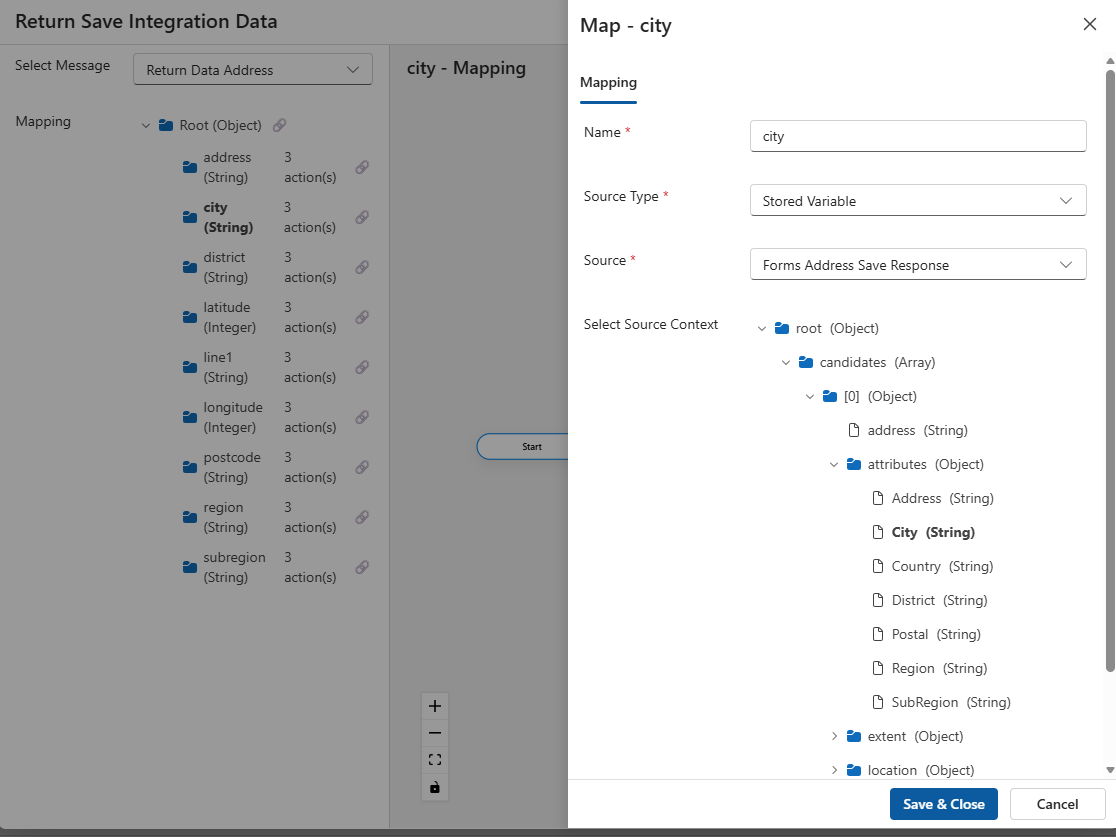
| city | Stored Variable | Forms Address Save Response | root -> candidates -> [0] -> attributes -> City |
| district | Stored Variable | Forms Address Save Response | root -> candidates -> [0] -> attributes -> District |
| latitude | Stored Variable | Forms Address Save Response | root -> candidates -> [0] -> location -> y |
| line1 | Stored Variable | Forms Address Save Response | root -> candidates -> [0] -> attributes -> Address |
| longitude | Stored Variable | Forms Address Save Response | root -> candidates -> [0] -> location -> x |
| postcode | Stored Variable | Forms Address Save Response | root -> candidates -> [0] -> attributes -> Postal |
| region | Stored Variable | Forms Address Save Response | root -> candidates -> [0] -> attributes -> Region |
| subregion | Stored Variable | Forms Address Save Response | root -> candidates -> [0] -> attributes -> SubRegion |
This is an example for City
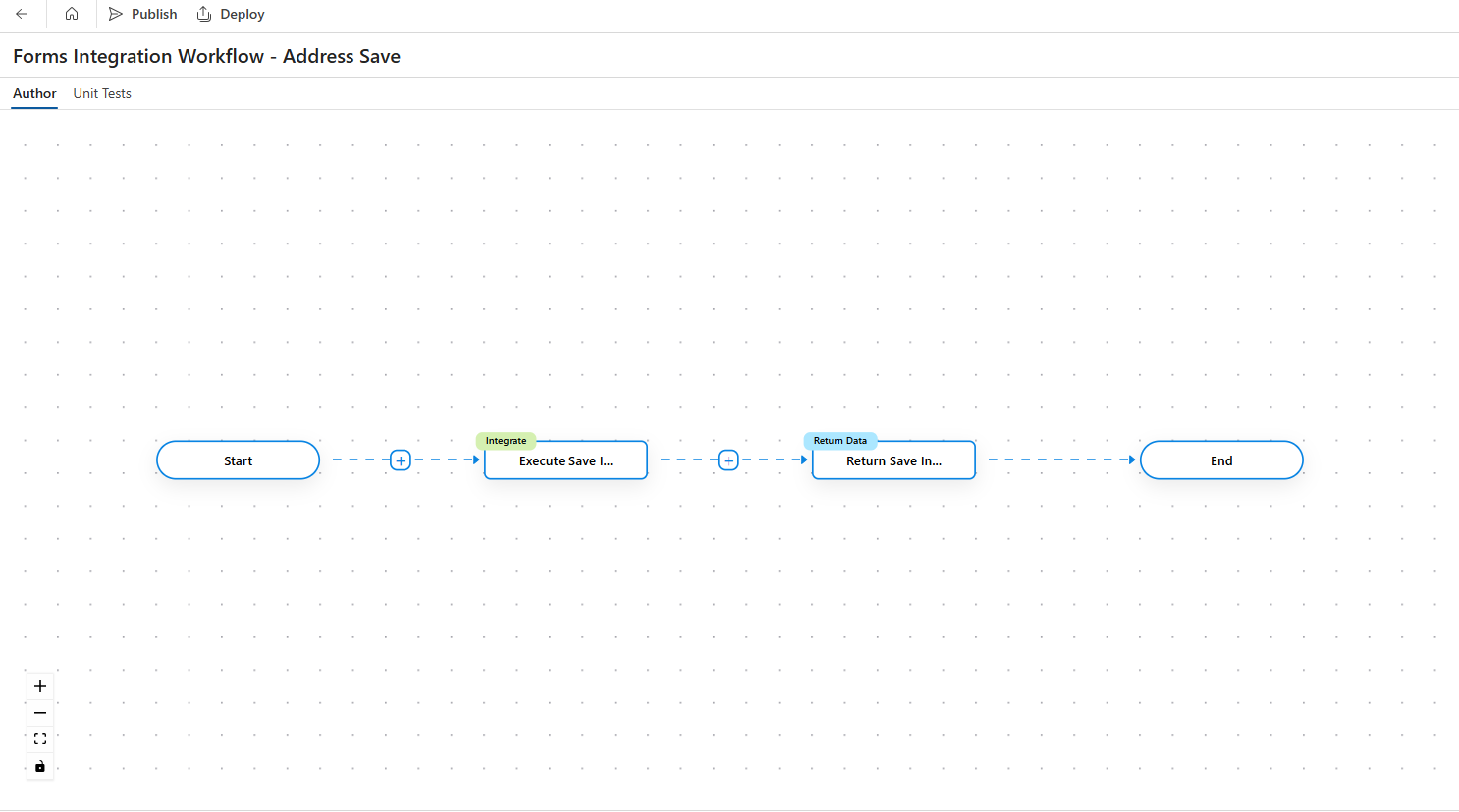
Close the window. The final canvas should look something like this:
4. Form Configuration
Once both Integration Workflows are created, you can configure them on a ProcessFactorial Form.
See Configure Address Lookup on a Form for step-by-step instructions on setting up the form fields, events, and field mappings.