Connection String
This page outlines how to get the connection string for your data store
DataVerse
Microsoft DataVerse requires a App Registration (also known as a Service Principal) to be created for non-interactive authentication. The steps below describes how to do this.
Warning
The Client Secret will expire periodically. When this happens, the connection string will need to be updated with a new secret. If this is not done in time, the ProcessFactorial will lose connectivity to your Microsoft DataVerse instance. Set a reminder to rotate the secret periodically.
Note
You will need access to add App Registrations on Microsoft Entra ID
Create App Registration
- Browse to https://entra.microsoft.com/ and log on with a user on the same domain as your Microsoft DataVerse instance. Typically this will be your company domain.
- On the left navigation, expand Applications and chose App Registrations
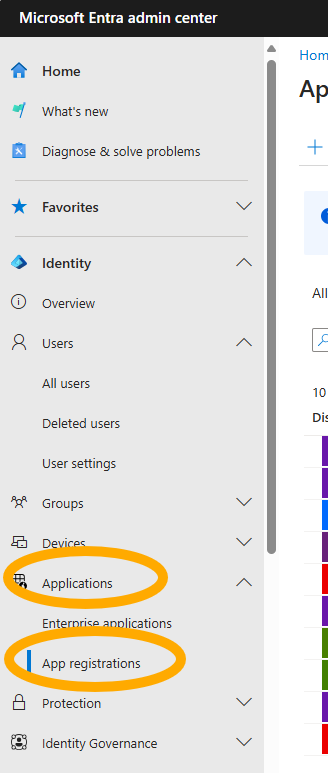
- Click New Registration
- Give the registration a name. Set the type (typically "Single Tenant")
- Click Register. This will create the App Registration.
- Copy the Application (client) ID and paste it in Notepad. We will use this later
- From the App Registration navigation, select Certificates & Secrets
- Click New Secret. Give it a Description and set the Expires value and click Add
- Copy the Value of this secret (not the Secret ID!) and paste it into Notepad. We will use this later. Once you leave this page, the Secret Value will no longer be available and you will need to create a new Secret.
Give Permissions to Microsoft DataVerse
- Browse to https://aka.ms/ppac
- From the left hand menu, select Environments and open your environment management interface
- In the top ribbon, click the Settings button
- Expand the Users + Permissions item and select Application users
- Click New app user and then in the popup drawer click Add an app and search for the App Registration from above (either search by name or application (client) id).
- Assign the user to a Business Unit. Typically this will be the root/base Business Unit
- Give the user a Security Roll. Typically System Administrator is required
- Click Create
Construct Connection String
Additional information can be found here: Use connection strings in XRM tooling to connect to Microsoft Dataverse (Dataverse) - Power Apps | Microsoft Learn
Replace the parameters in the connection string below:
AuthType=ClientSecret;url=**YOUR_DATAVERSE_URL**;ClientId=**YOUR_APPLICATION_CLIENT_ID**;ClientSecret=**YOUR_APPLICATION_SECRET**
For example:
AuthType=ClientSecret;url=https://my-company.crm.dynamics.com;ClientId=b6564c83-2933-4233-b873-632b9731aaaa;ClientSecret=1jh8Q~.9Gx8to1sMZXaARnsqG.FWmIaaaaaaaaaa
SalesForce
TBC
Microsoft SQL Server
Microsoft SQL Server has a number of different options for connecting to the database. The recommended approach is to use a passwordless Managed Identity on the Translation Layer SQL (npobp_trsql) function app. This is not the only supported option.
Enable Managed Identity
On your Translation Layer SQL (npobp_trsql) Function App in Azure, browse to the Identity menu item and ensure System Assigned is turned on.
SQL Server Admin
Ensure that the SQL Server (not the DB) instance on Azure has at least one Microsoft Entra ID Admin. To do this, browse to the SQL Server in Azure -> Settings -> Microsoft Entra ID -> Click Set Admin
SQL Database
On the SQL Database, run the following SQL script to add the Translation Layer SQL (npobp_trsql) Function App as a user:
CREATE USER [<your_sql_translation_funciton_app_name>] FROM EXTERNAL PROVIDER;
ALTER ROLE db_datareader ADD MEMBER [<your_sql_translation_funciton_app_name>];
ALTER ROLE db_datawriter ADD MEMBER [<your_sql_translation_funciton_app_name>];
Note
If you want to give the front end NPO Portal (npobp_portal) user the ability to add tables and columns, then this user will need additional permissions. These permissions include, but are not limited to:
Connection String
Your connection string will then look something like this:
Server=tcp:<your_sql_server_name>.database.windows.net,1433;Database=<your_sql_database_name>;Authentication=Active Directory Managed Identity;Encrypt=True;TrustServerCertificate=False;Connection Timeout=30;
PostgreSQL
TBC