Manage Pages
Add a Page
This page outlines how to add a page to a Factorial Form
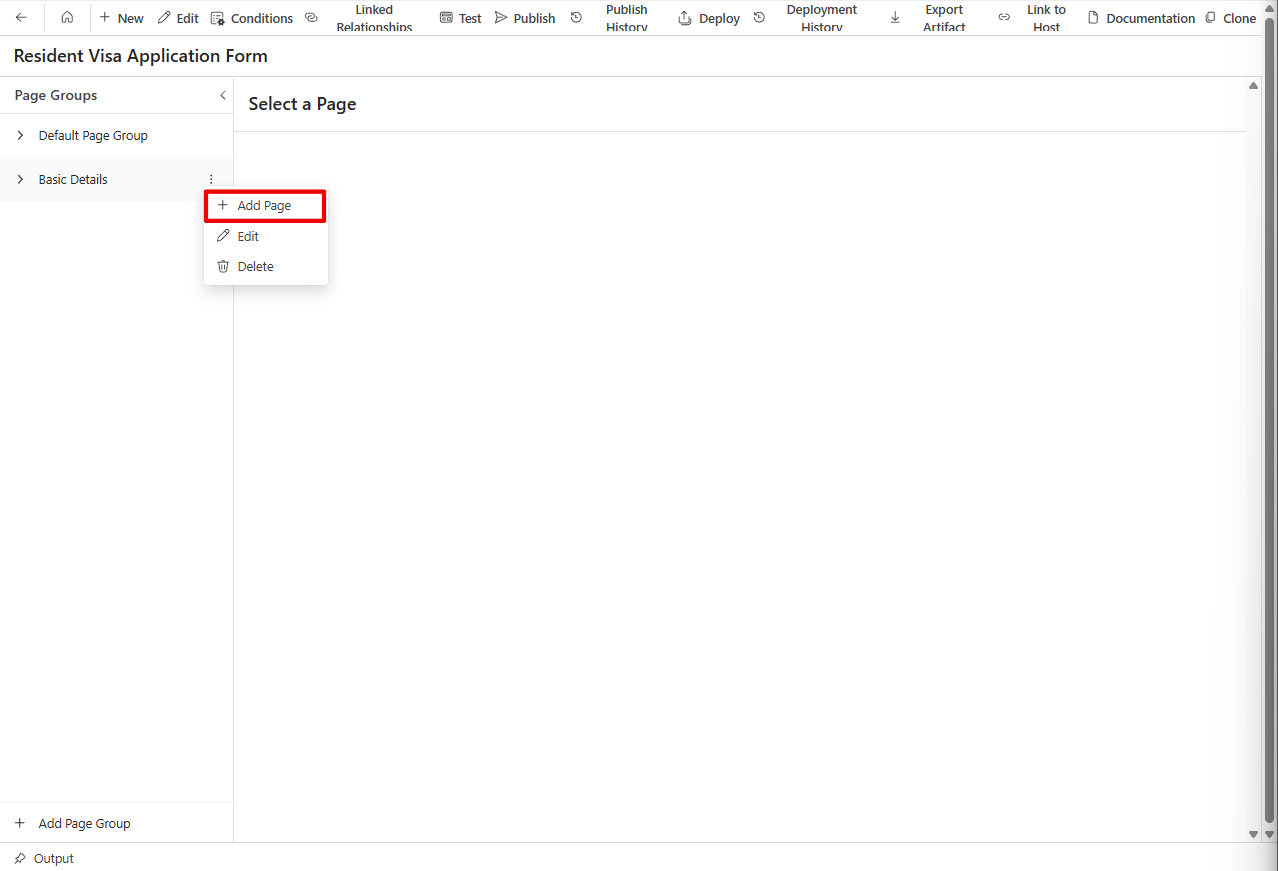
- Navigate to the Forms page in your project and click on the Page Group of the Factorial Form that you need to create a page in. If you don't have a Factorial Form created, follow the instructions detailed in the wiki Manage a Form, to create one. If you don't have a Page Group created, follow the instructions detailed in the wiki Manage Page Groups, to create one.
- In the page groups panel, click on the
+ Add Pagebutton on the three dots adjacent to the page group name on the lefthand side to start creating a page.
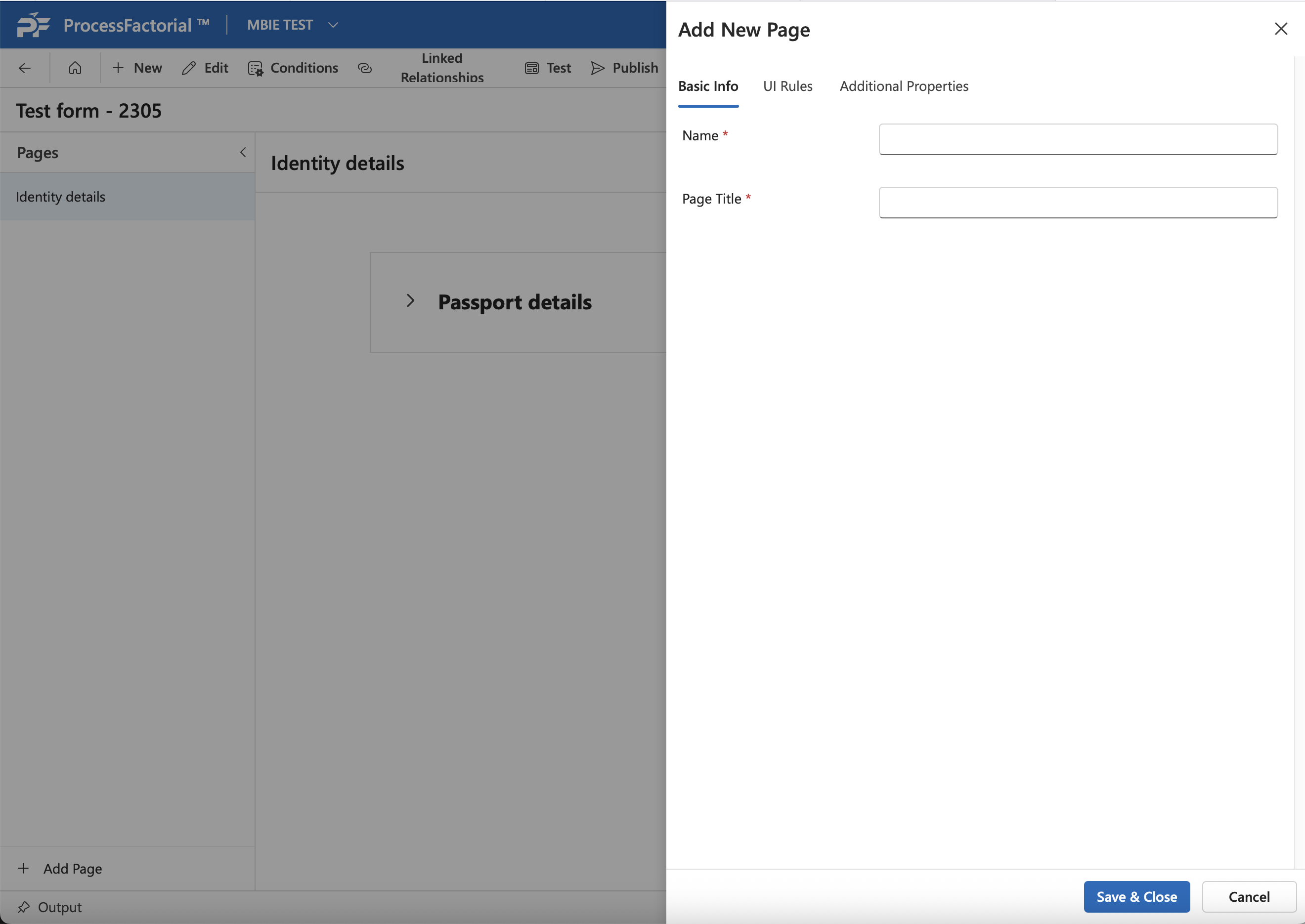
- In the fly-out panel, fill in the
NameandPage Titleunder theBasic Infotab. ^59f4eb
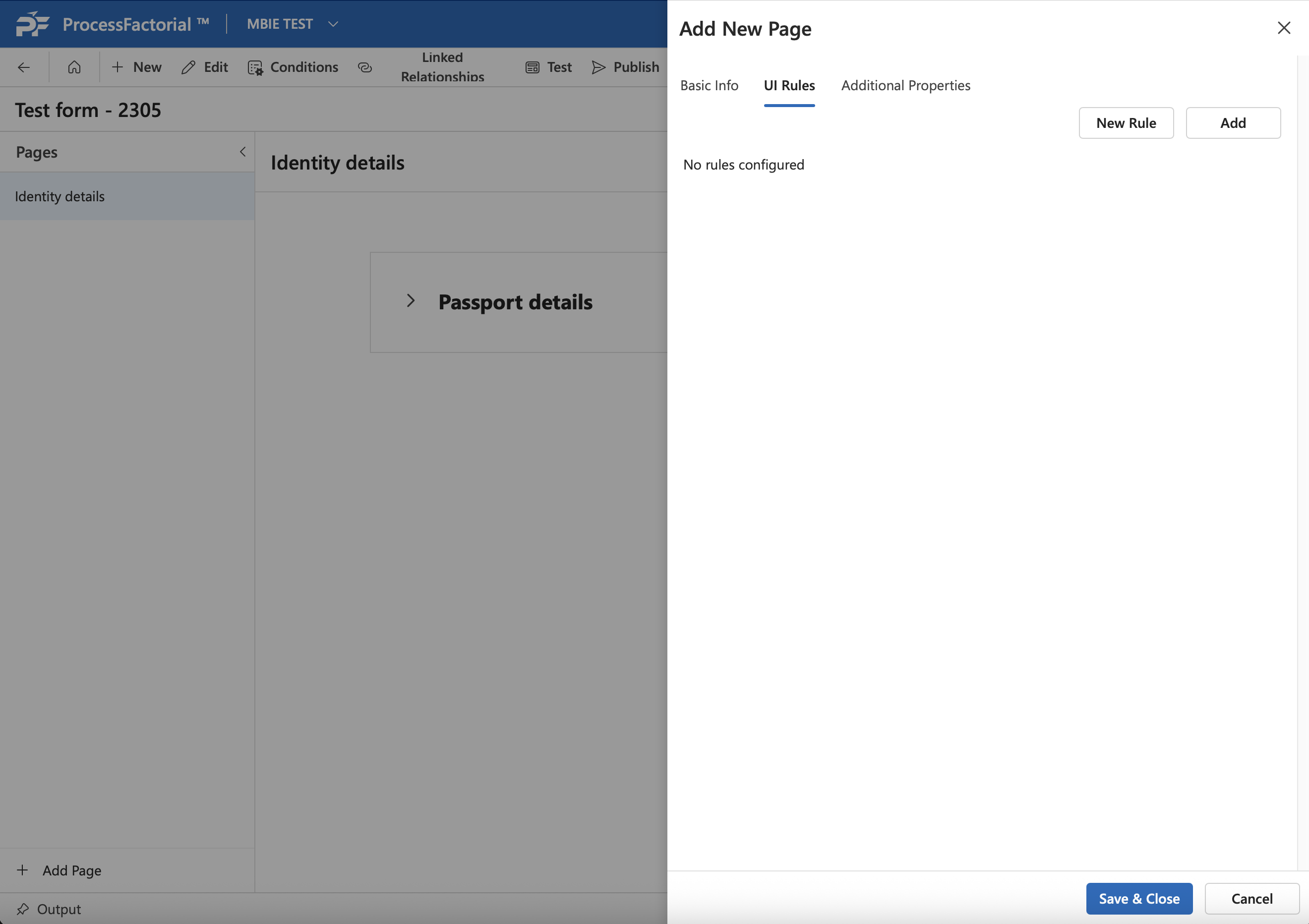
- Click on
UI Rulestab to set up display rules for the page. You can click on theNew Rulebutton to define a new rule, or alternatively you can click theAddbutton to add an existing rule to the page. Learn more about UI rules here
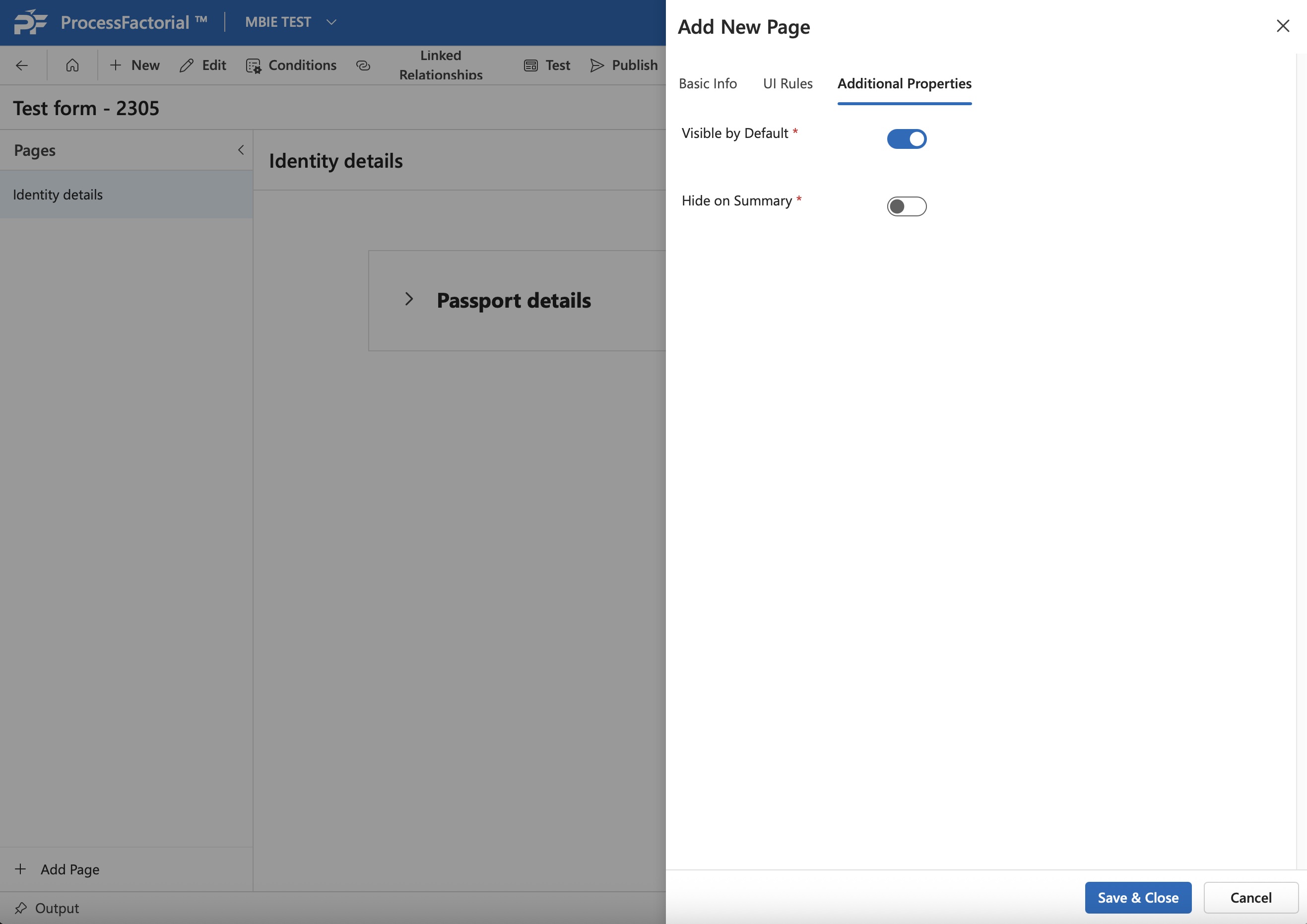
- Click on the
Additional Propertiestab, to toggle visibility settings for the page. One can choose to keep the page visible by default or not, and also toggle the setting to hide the information populated by the page from the summary page for the Factorial Form
- Click on the
Save & Closebutton once you have configured the page to your liking, to add the page onto your form. - The page will now be visible in the
Page Groupspanel in the form configuration page as you expand the respective page group.
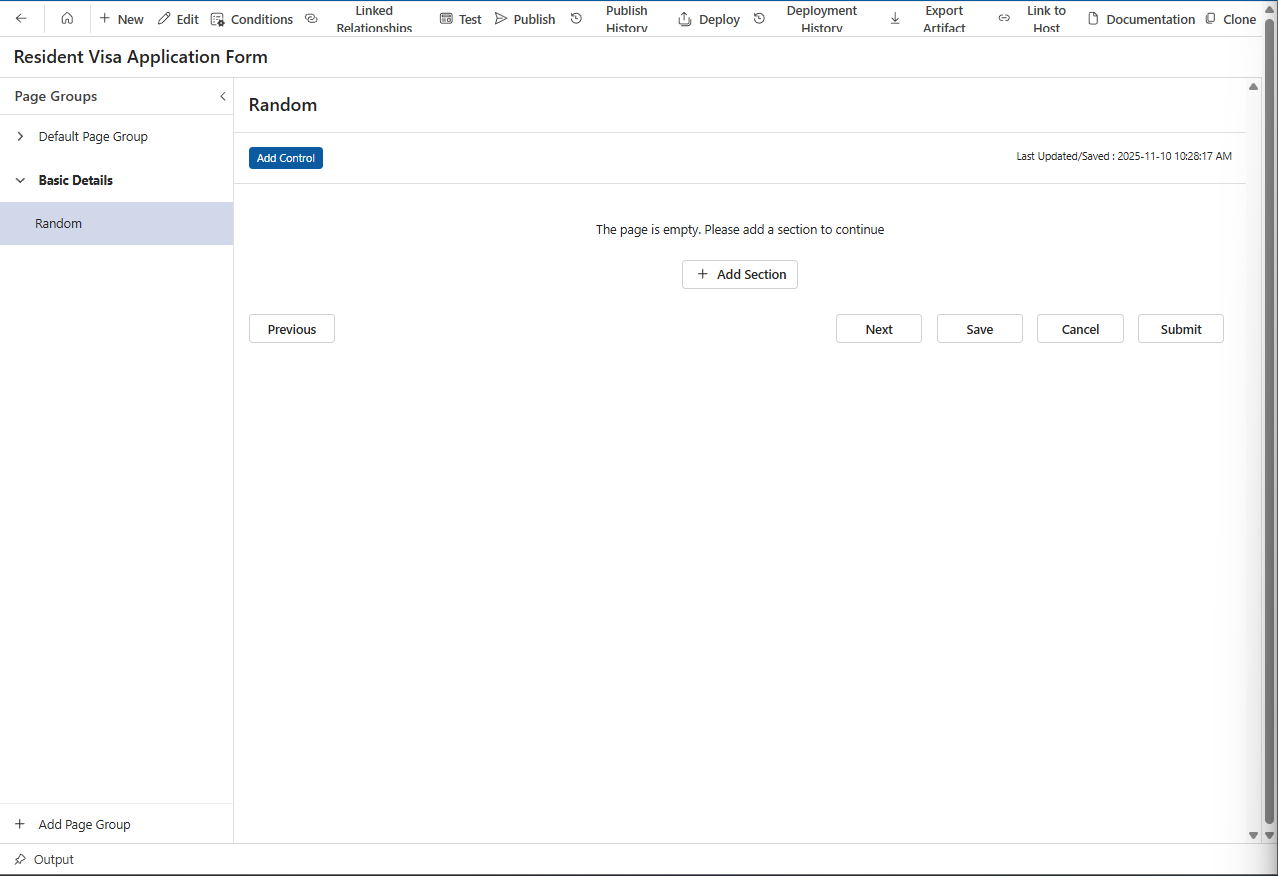
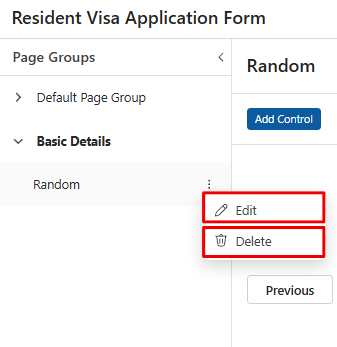
Once a page has been created for the form, it can be edited and deleted from the Pages panel by clicking on the 3 dots adjacent to the page and choosing either action from the context menu that opens up.
Edit a Page
- Click on the
Editoption in the context menu. - This opens up the drawer panel for the page details.
- Make appropriate changes in the panel and click on
Save & Closeto save the edits to page details.
Delete a Page
- Click on the
Deleteoption in the context menu.

- In the confirmation dialog box, click on
Deletebutton to delete the page, else click onCloseto close the dialog box without deleting the page.