Manage Page Groups
Add a Page Group
This page outlines how to add a page to a Factorial Form
- Navigate to the Forms page in your project and click on the Factorial Form that you need to create a page in. If you don't have a Factorial Form created, follow the instructions detailed in the wiki Manage a Form, to create one.
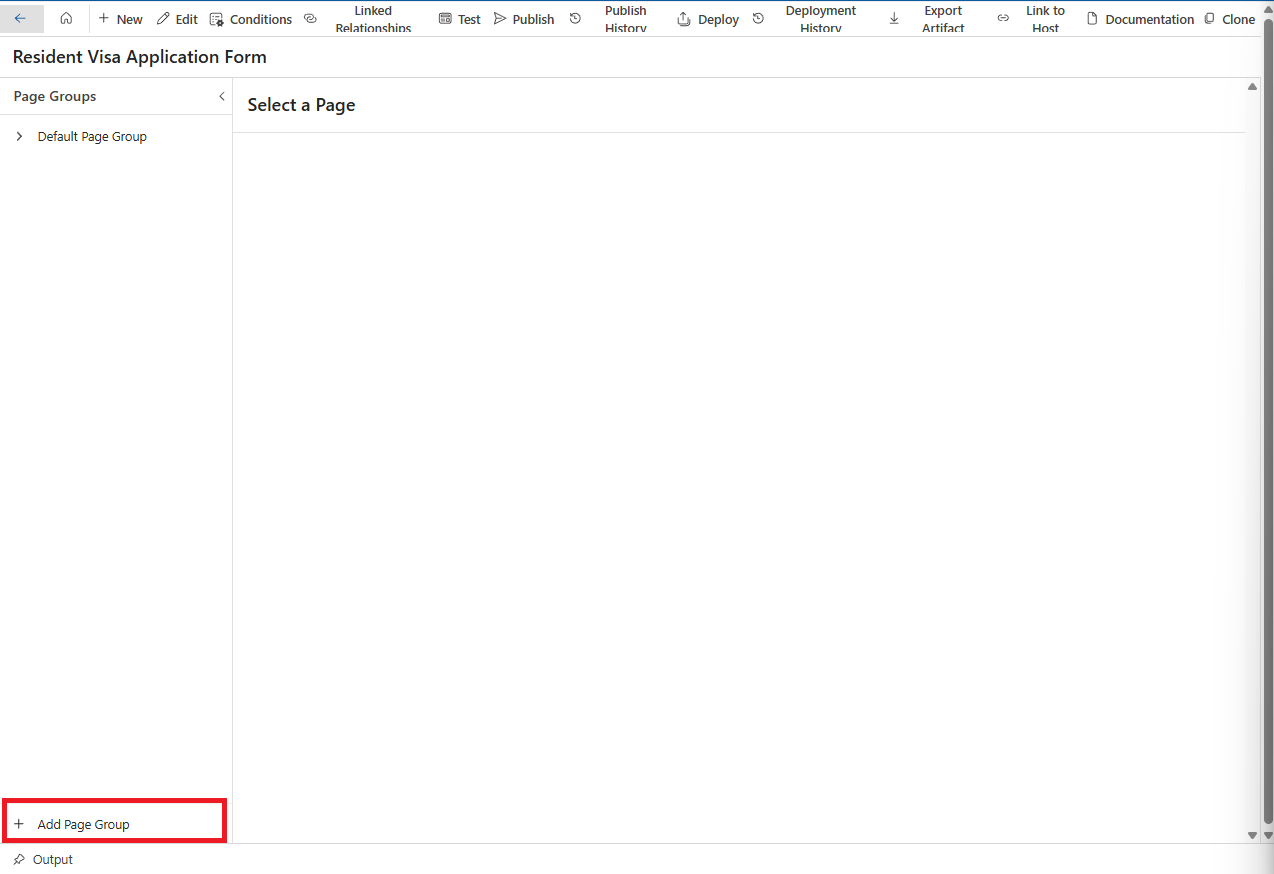
- In the form configuration page, click on the
+ Add Page Groupbutton at the bottom of thePage Groupspanel on the lefthand side to start creating a page.
- In the fly-out panel, fill in the
NameandDescriptionunder theBasic Infotab. ^59f4eb
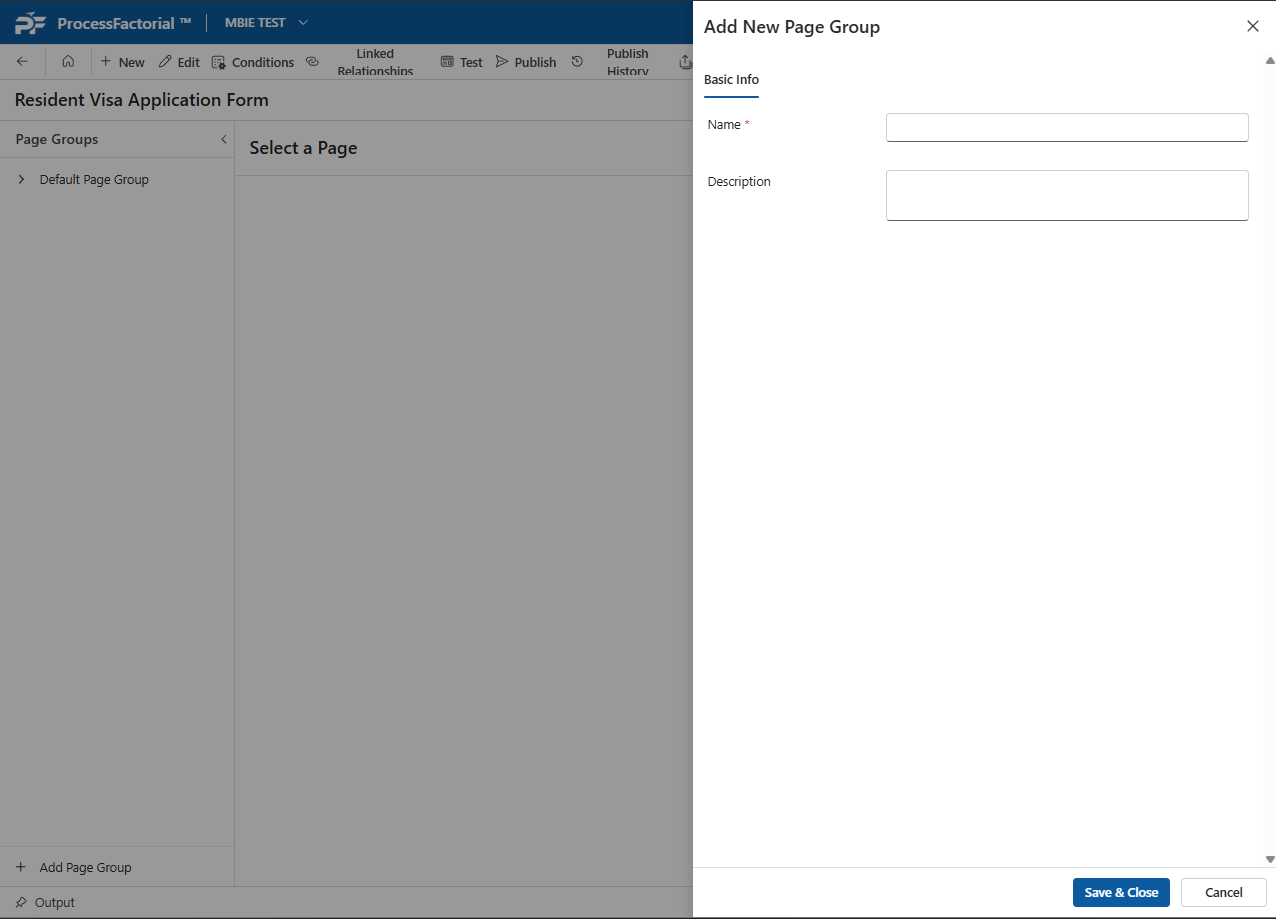
- Click on the
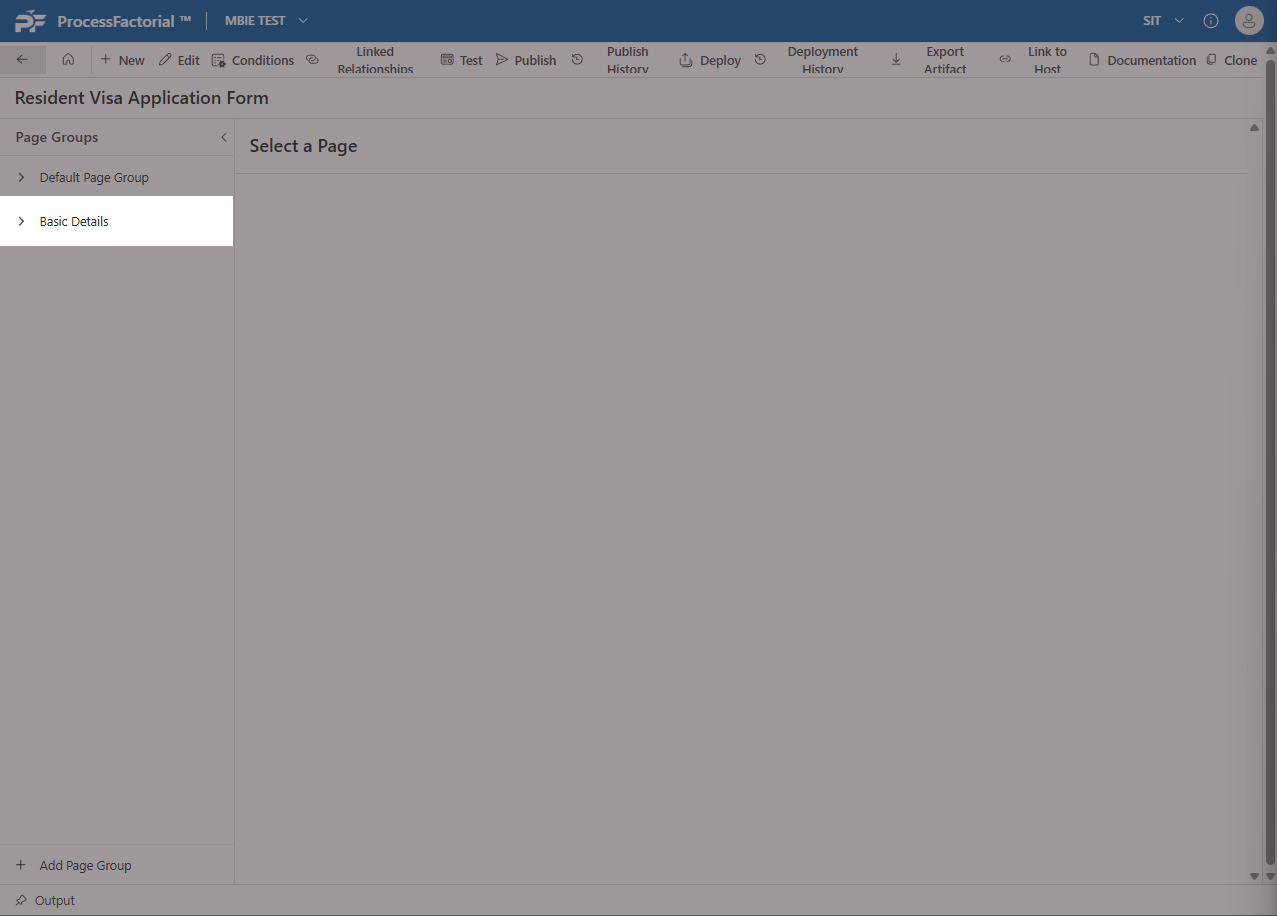
Save & Closebutton once you have set the page group to your liking, to add the page group onto your form. - The page group will now be visible in the
Page Groupspanel in the form configuration page.
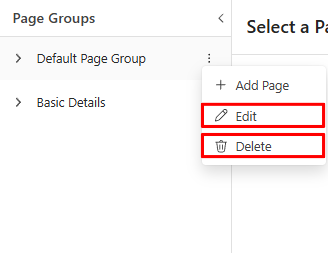
Once a page group has been created for the form, it can be edited and deleted from the Page Groups panel by clicking on the 3 dots adjacent to the page and choosing either action from the context menu that opens up. The option to Add Page can also be found in this three dots option.
Edit a Page Group
- Click on the
Editoption in the context menu. - This opens up the drawer panel for the page group details.
- Make appropriate changes in the panel and click on
Save & Closeto save the edits to page details.
Delete a Page
- Click on the
Deleteoption in the context menu.

- In the confirmation dialog box, click on
Deletebutton to delete the page, else click onCancelto close the dialog box without deleting the page.