Expose your Journey
Expose your Journey
[Microsoft Power Pages](../../terminology/microsoft-power-pages.md) caches it's records. If you have Admin rights, you can reset the cache or you can wait a minute or two for the form to appear on the page
This page outlines how to expose your Factorial Form form on your website. The exact method depends on which technology you use.
Note
You only need to do this once for each Factorial Form form you wish to display on your website. Any updates to this form will automatically happen when you Deploy a new version of the same form
In each process below, you will need to get a block of code from the ProcessFactorial Portal
- Browse to the ProcessFactorial Portal, open your NPO Customer, then your NPO Project
- Click on the Factorial Form tab and select your form that you want to expose. Don't open the form, just select it via the radio button.
-
From the grid ribbon, select Link to Host (you may need to click the elipsis (...) to see this menu option)
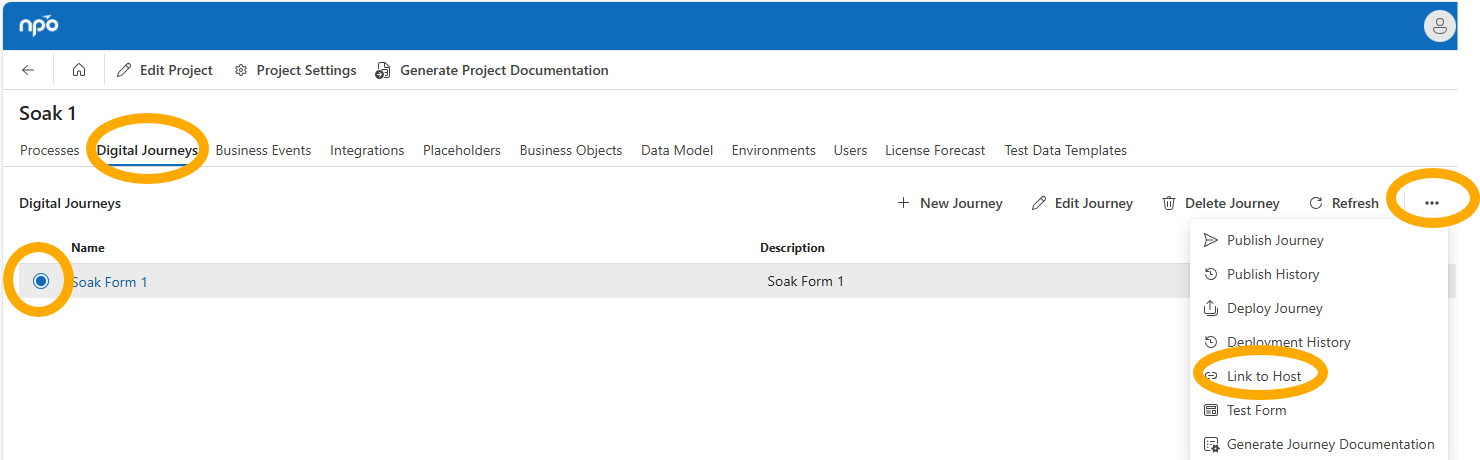
-
Chose your hosting platform and click Generate Code
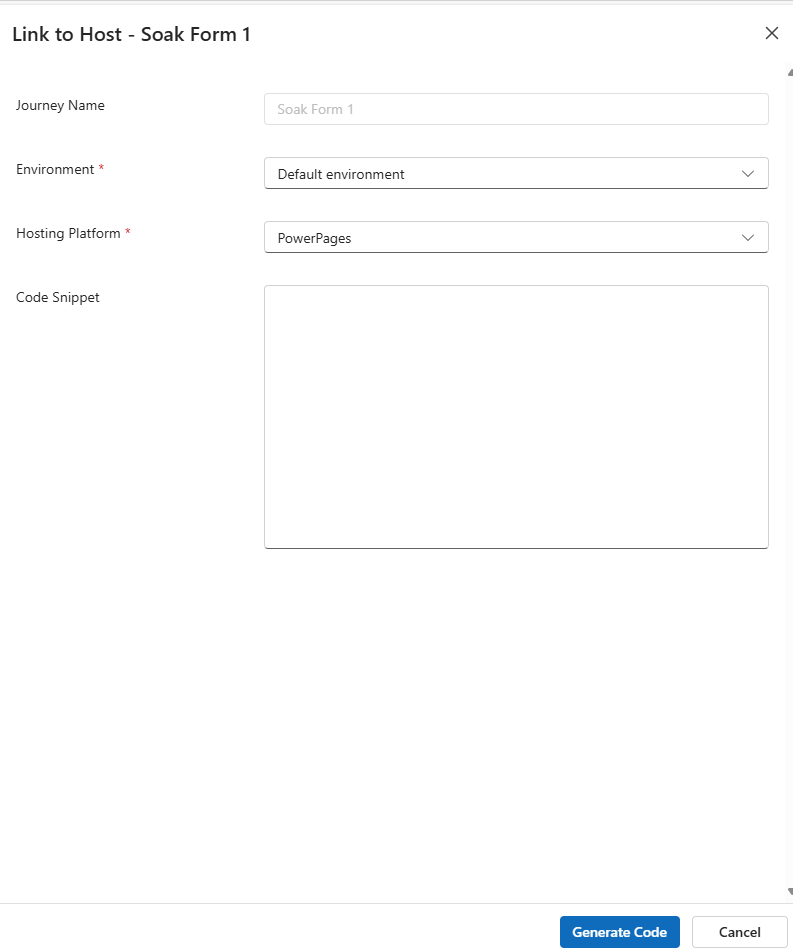
-
This will give a snippet of code in the Code Snippet box. Copy this code. This will be used in the next steps, based on environment.
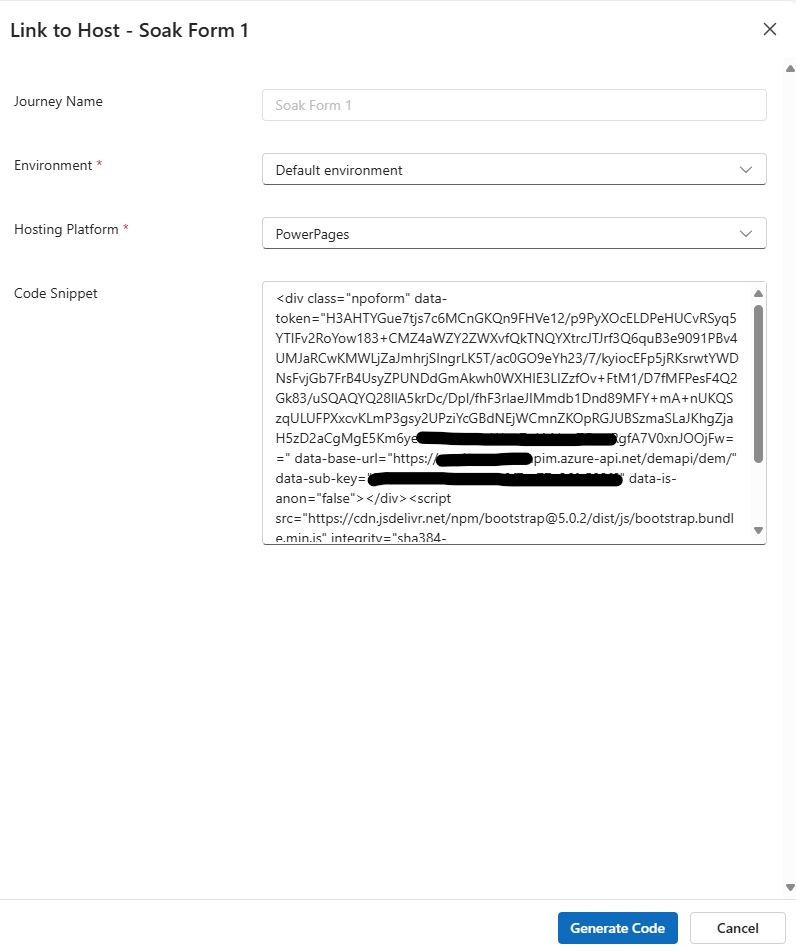
Microsoft Power Pages
Note
One time setup is required to give the Factorial Form platform access to the logged in user on Microsoft Power Pages
Instructions on how to do that can be found here
For Microsoft Power Pages we need to copy and paste the snippet from above into a "Web Page" record.
Option 1: Using the Power Pages Studio Interface
- Browse to Power Pages Studio
- Using the Environment selector in the ribbon, ensure you have the correct environment selected. Find your site in the Active Sites section and click Edit
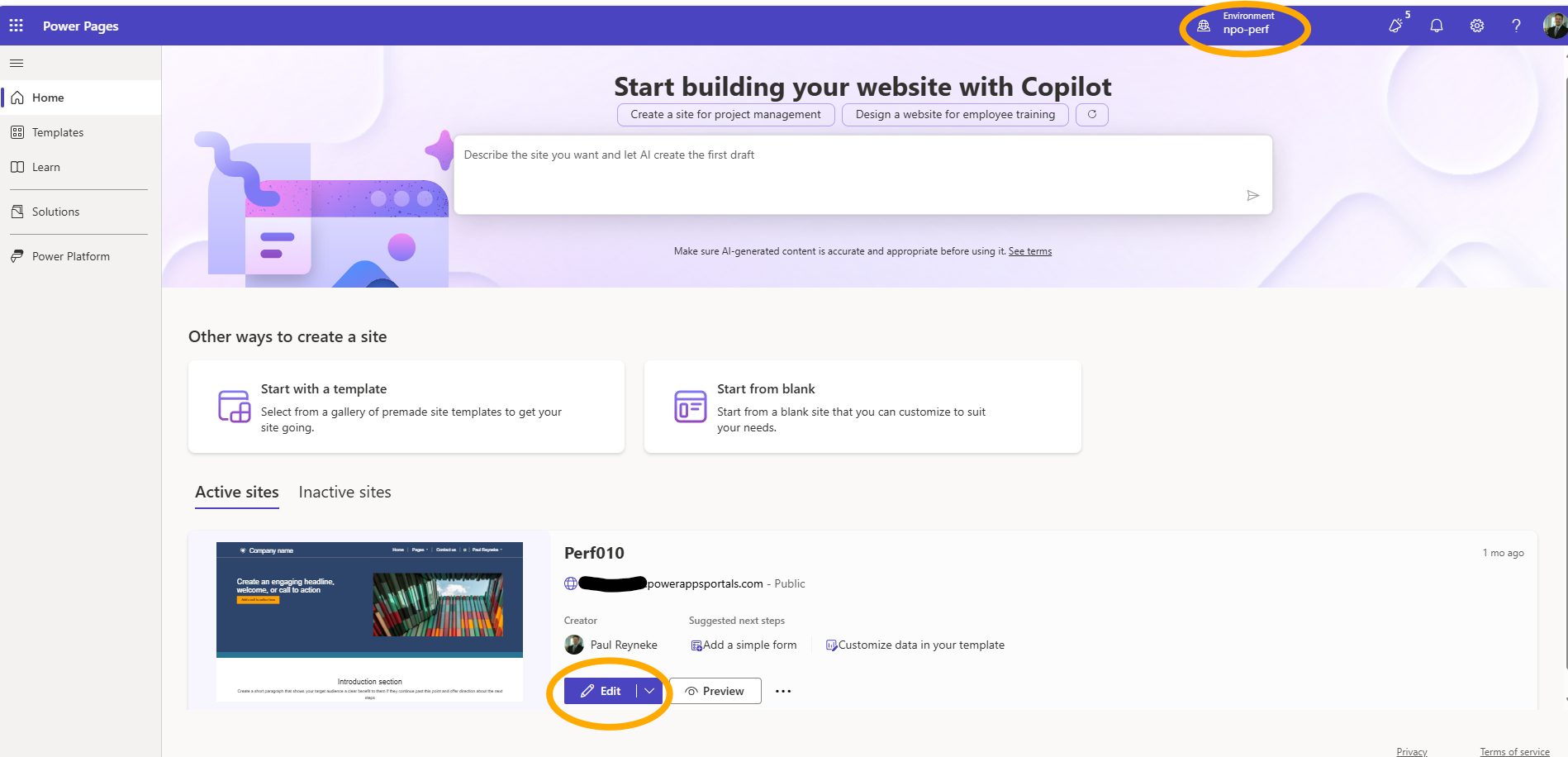
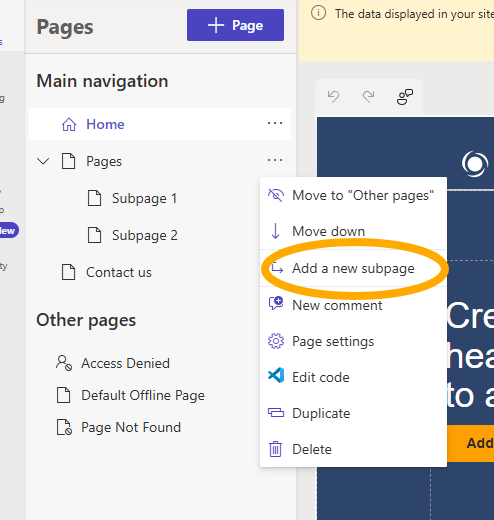
- In the right hand Pages section, chose where you want to add your page (or edit an existing page). Click the ellipses and chose Add new subpage
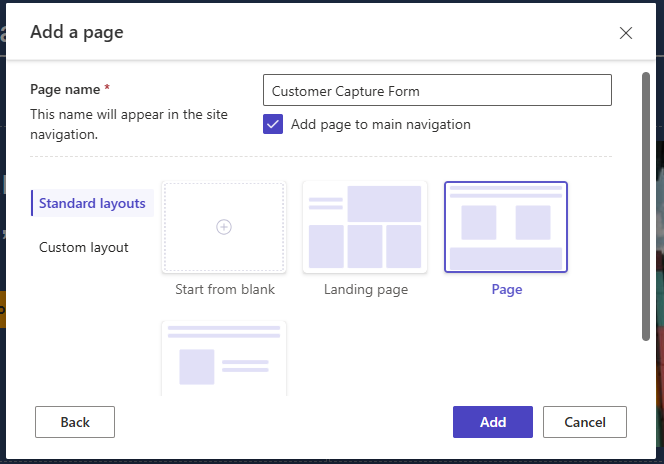
- Chose a layout template, for example the "Page" template and give it a name and click Add
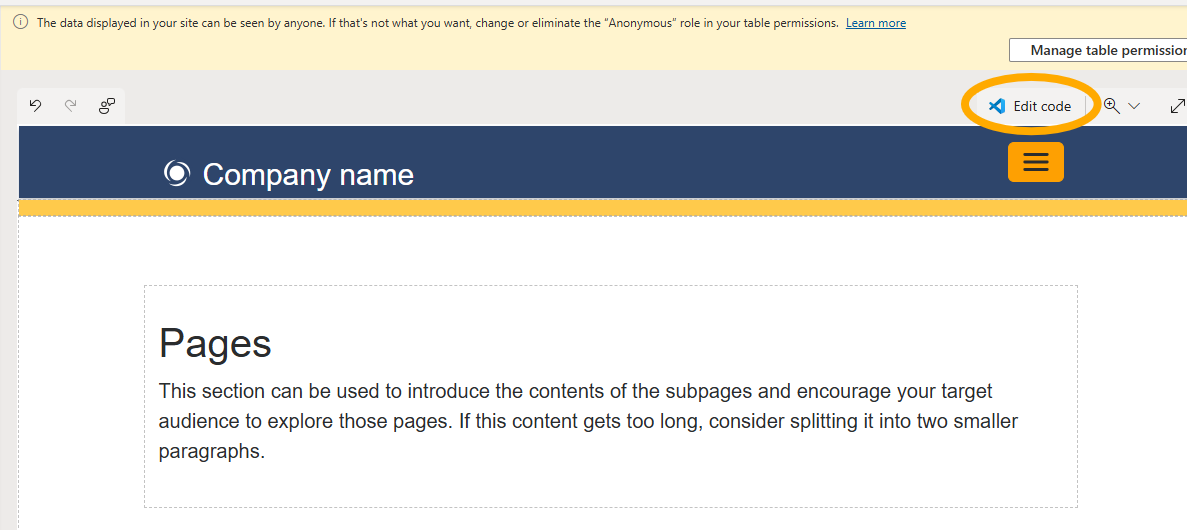
- Click the Edit code button, which will take you to an editor where you can paste your content snippet (from above) into. This code editor may ask for additional permissions and may take a little while to load and connect.
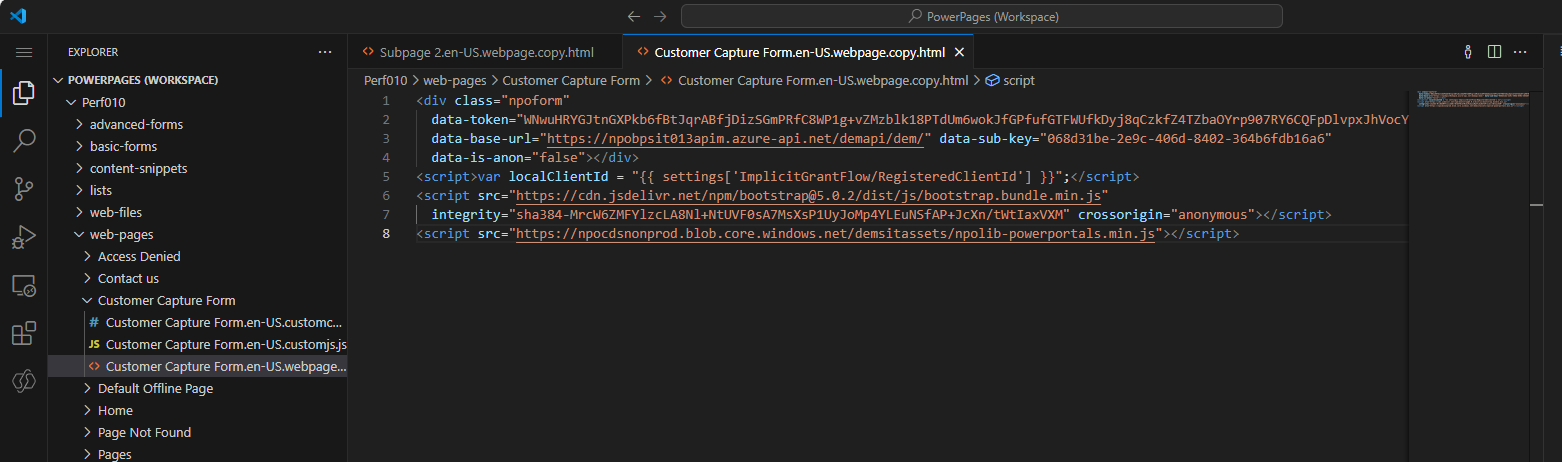
- In this example, we are deleting all the other templated HTML because it is unnecessary. The only HTML that will be in the file will be the content snippet. Make sure you save (CTRL-S).
- When you browse back to the Power Pages Studio, it may ask you to sync your changes. Your form will not display in the editor. It will only be visible on your Power Pages portal
- In Power Pages Studio, click Preview to see your Portal. If your Factorial Form form requires authentication, you will need to log in to see the form load.
Option 2: Using the classic DataVerse interface
- Browse to your Microsoft DataVerse instance.
- Open the Power Pages Management App
- On the left hand side, select Web Pages and open the Web Page that should host this Factorial Form form
- From within this Web Page, you may need to open up the "Localized Content" sub-web-page record.
- Paste the Content Snippet in an appropriate place on this record and save.
Note
Microsoft Power Pages caches it's records. If you have Admin rights, you can reset the cache or you can wait a minute or two for the form to appear on the page