Add a Section
Sections can be created in a Form Page to group specific blocks of information. This page outlines how to create and modify a section within a page of your Factorial Form
Add a Section
Follow the below steps to create a new section within a Form Page
- In the [[Form Configuration]] page, after selecting the page to add a section in from the
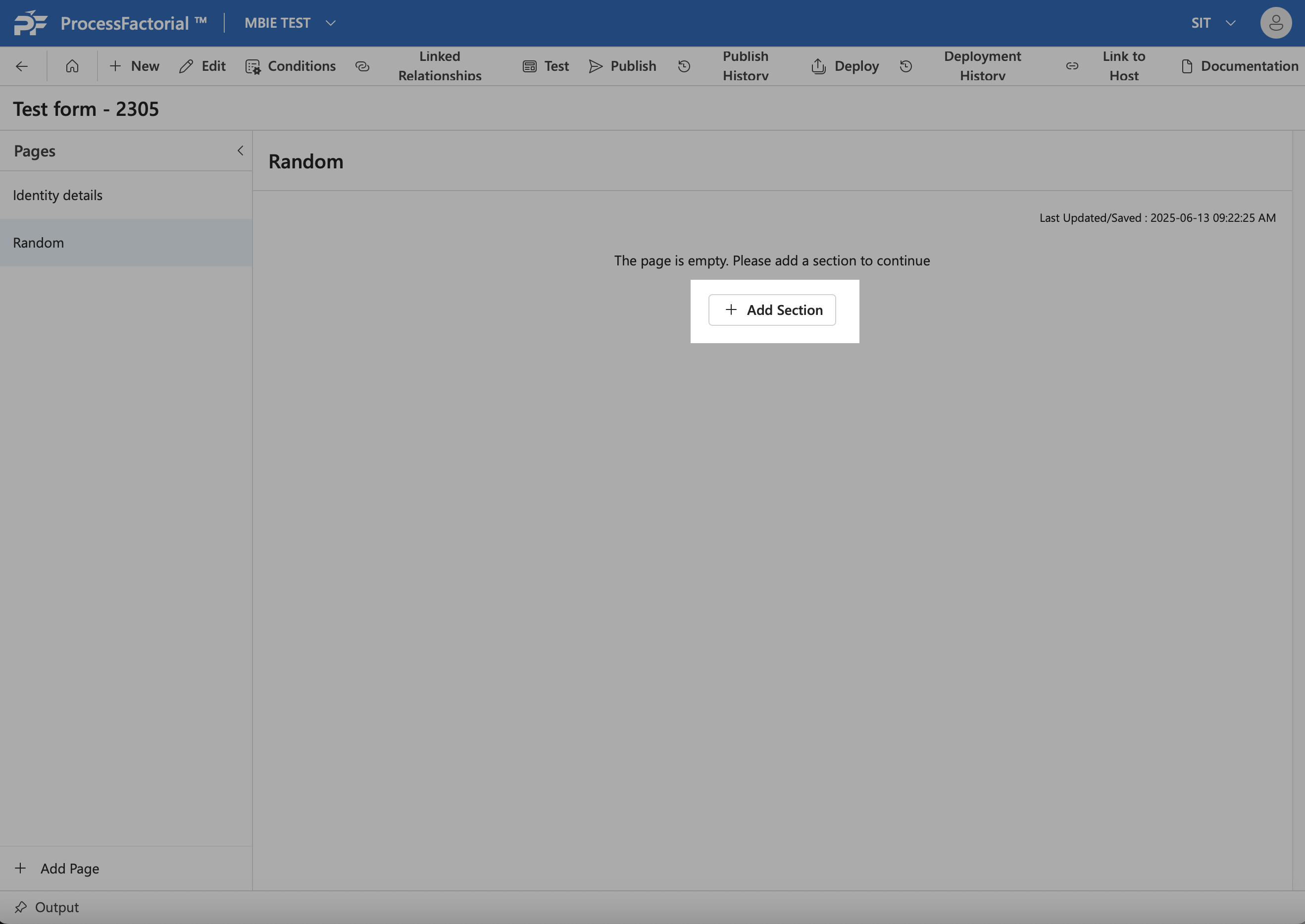
Pagespanel, click on the+Add Sectionbutton to start creating a section if the page is empty. If a section already exists on the page, click on theInsert Sectionbutton (button 1 in the image) on the exiting section to insert a new section underneath it ^e1331a
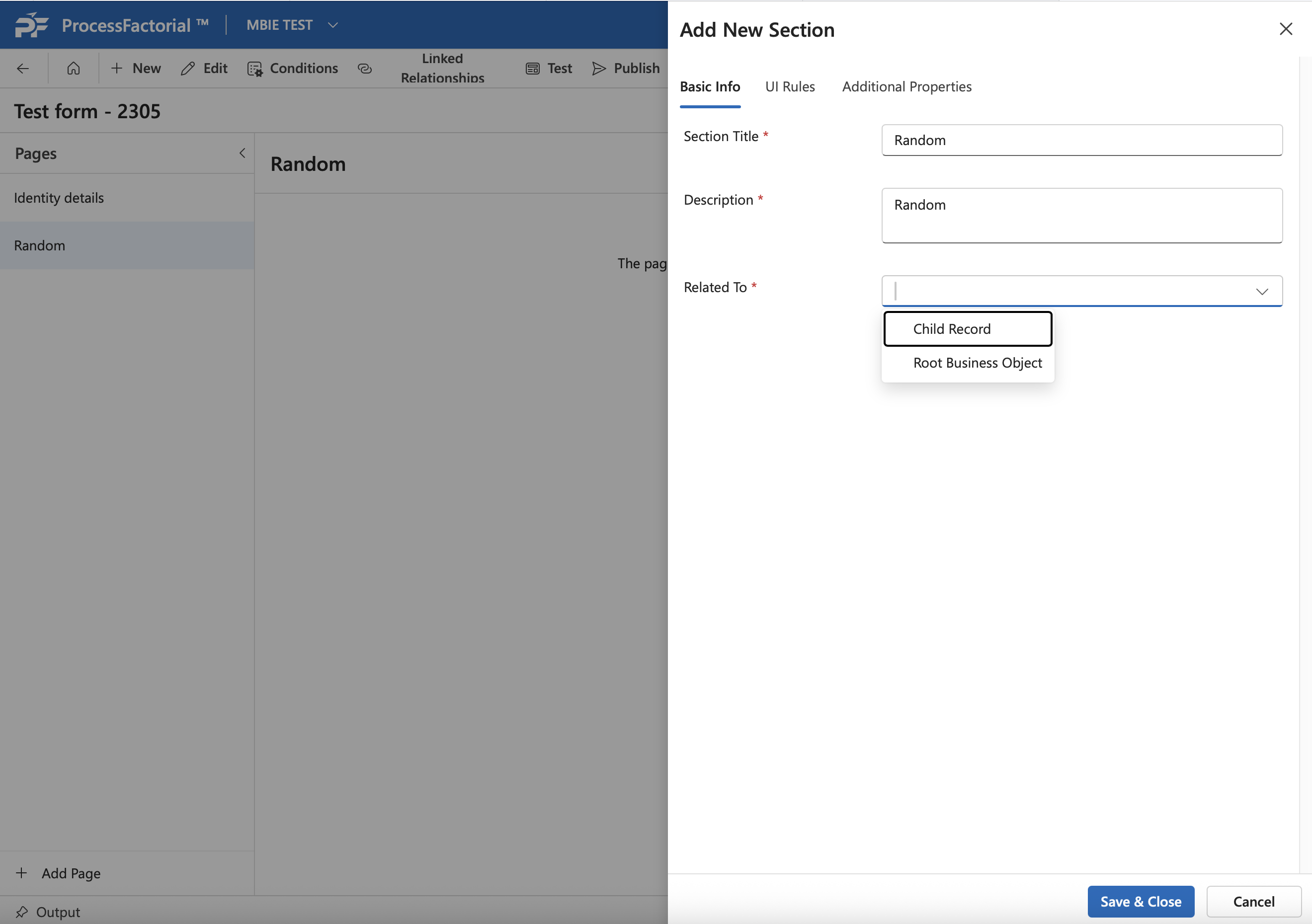
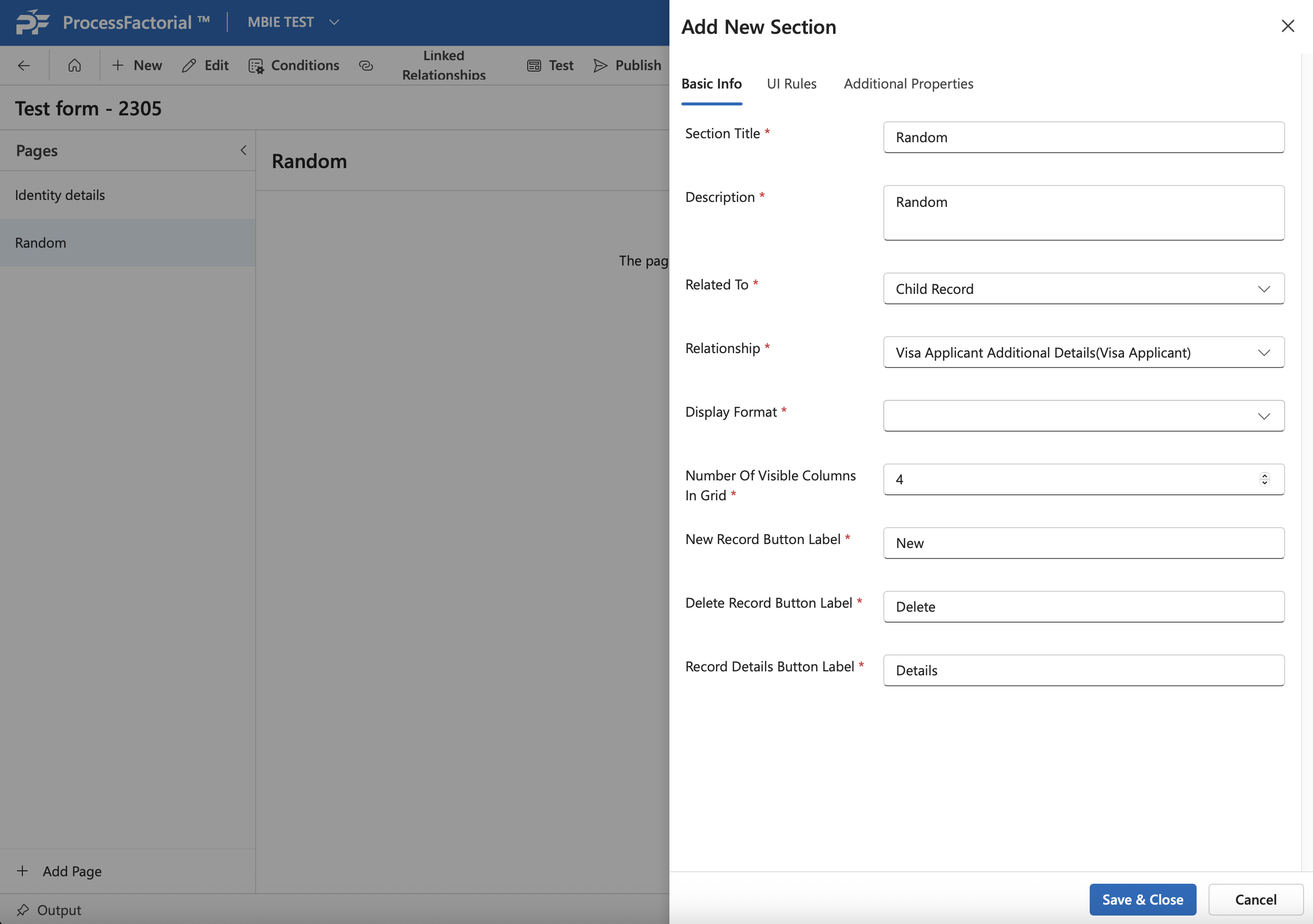
- In the drawer panel that opens, fill out the details mentioned in the table below.
| Field | Description |
|---|---|
| Section Title | (Required) Suitable title for the section |
| Description | (Required) A succinct description for the section |
| Related To | (Required) Specify whether the business object the section is either of: 1. Root Business Object 2. Child Record |
| __ | Fill in the below details if the section is related to child record |
| Relationship | Choose the business object of the child record |
| Display Format | Choose from either of: 1. Standard Table 2. Editable Grid |
| Number of visible columns in the grid | Specify how many columns should be visible in the section grid on the page. Default value is 4. |
| New Record button label | Label for the New Record button in the section |
| Delete Record button label | Label for the Delete Record button in the section |
| Record details button label | Label for the Record details button in the section |
^8f7160
- UI Rules can be configured in the
UI Rulestab. Click on theNew Rulebutton to create a new display rule to govern the visibility of the section or alternatively click on theAdd Rulebutton to add an already existing UI rule instead. - Additional Properties to configure the visibility of the section can be defined in the
Additional Propertiestab. One can choose to hide the section by default on the page, or hide the section from the summary page. - After finalising the details, click on
Save & Closeto save and create the section, else clickCancelto abort. - Once the section has been created it will be visible on the Form Configuration page.
Modify Section
Existing sections can be further modified and deleted using the respective buttons in the section (as indicated in the image below).
 ^d5a383
- Click on the first button to insert a new section, below the current section. (see here)
- The second button allows the user to add a field to the section. (see here)
- Clicking the third button allows the user to edit the current section. Refer the table for details on the fields.
- Click on the fourth button to delete the current section.