Manage Business Event
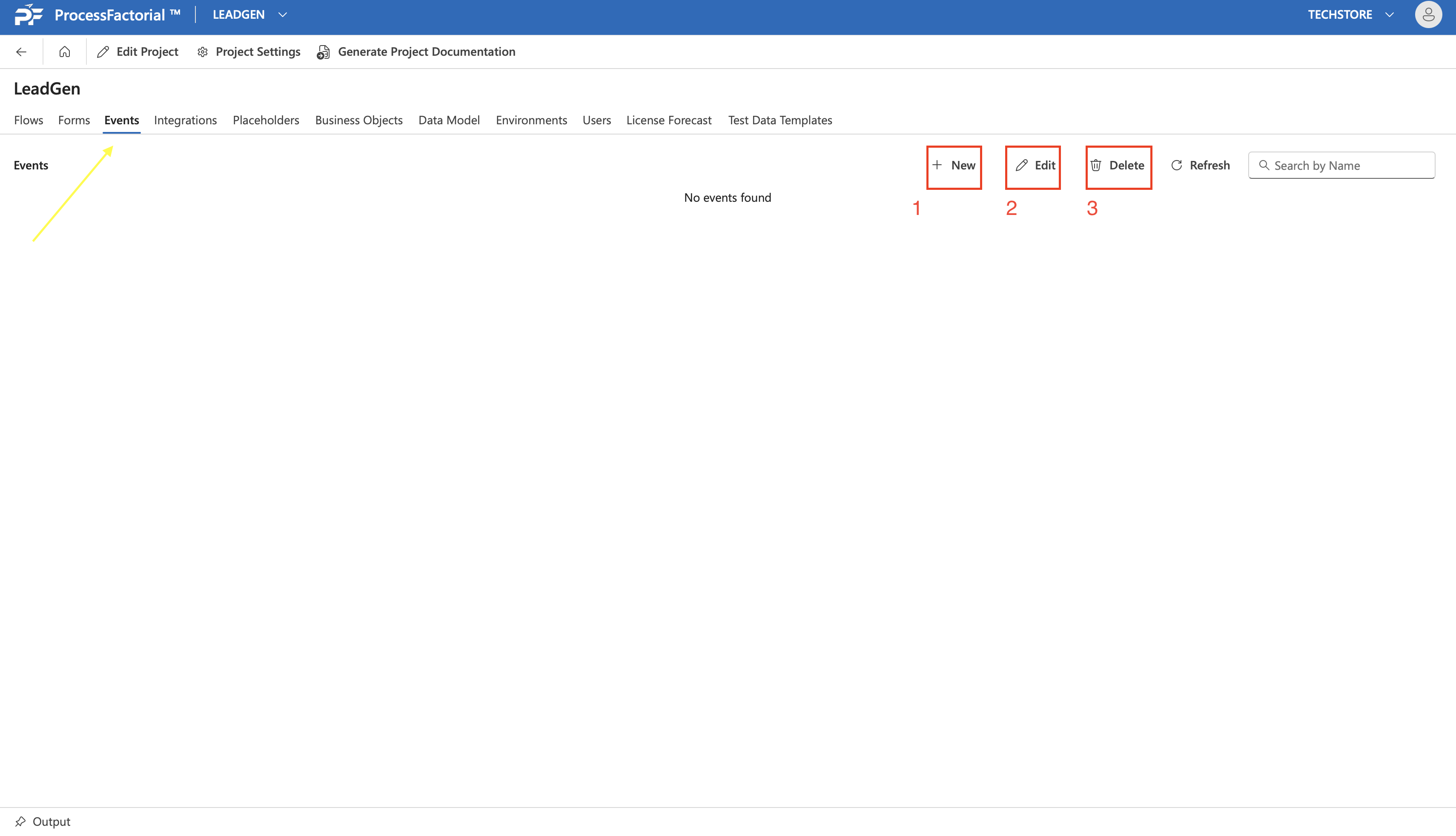
A business process, hereafter referred to as a Factorial Flow in ProcessFactorial terms, needs to be associated with a business event that governs its execution. Business events can be created and subsequently managed from the Events tab within the project.
Create a New Business Event
Prerequisite: A valid NPO Project Refer Manage Project to learn more.
Follow the below steps to create a new Business Event.
- Click on the
+ Newbutton from the upper-right panel (highlighted in the screenshot) -
In the drawer panel that slides open, fill out the below details.
Field Description Name A suitable name for the event Description A succinct description for the event Business Object The Business Object to be associated with the event.
Choose from available business objects in the drop down or click+ Newto create a new one.Event Type The type of event. Choose from:
1. Trigger Event
2. Wait Event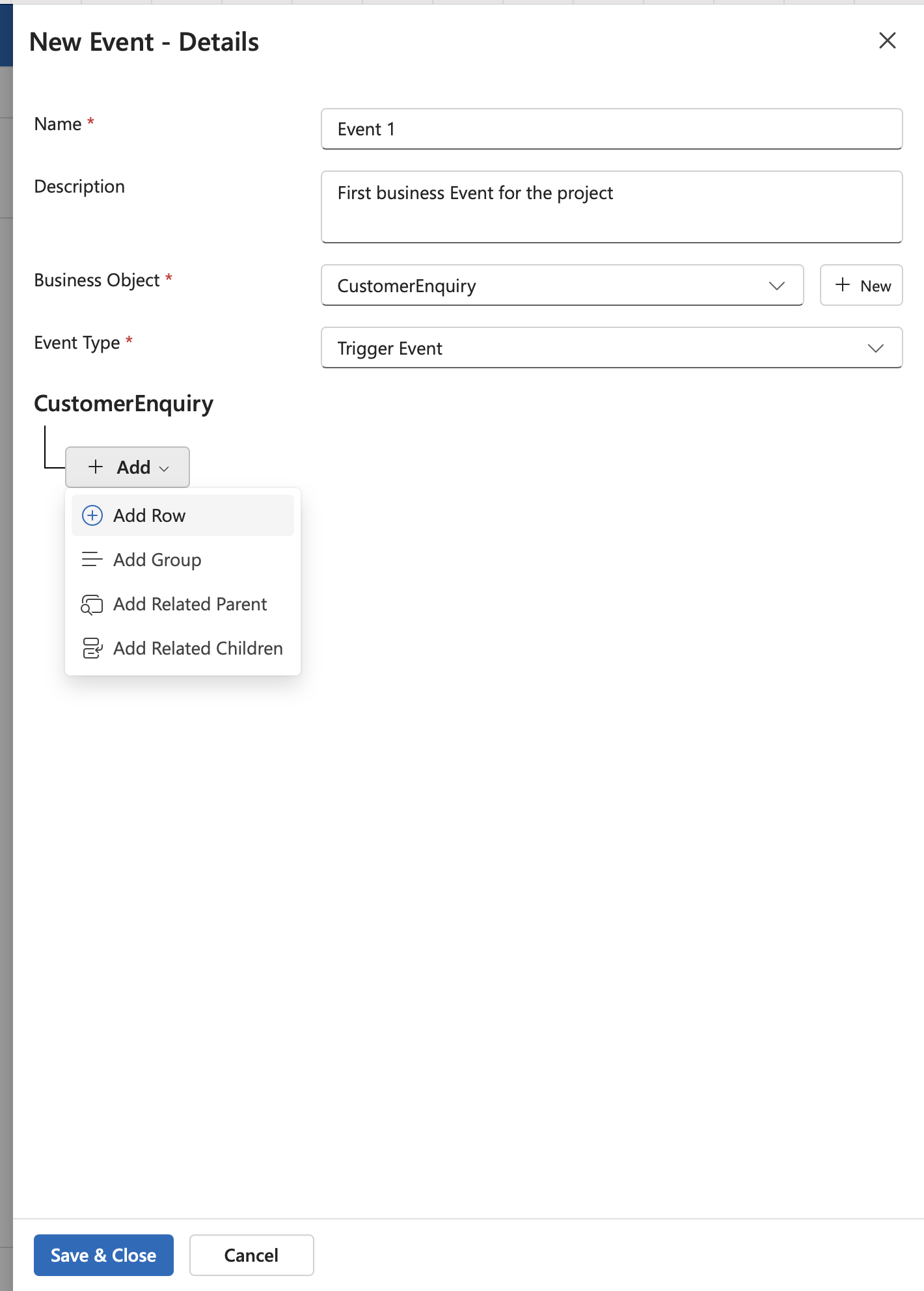
-
Click on the
+ Addbutton at the bottom to start defining the conditions based on attributes of the business object to define the event. Choice of attributes can be done as follows.- Add Row: Add a single row condition based on a single attribute
- Add Group: Add a conditional group based on multiple attributes. Supports further nesting of conditional groups and rows.
- Add Related Parent: Add condition(s) based on attributes of a related parent business object
- Add Related Children: Add condition(s) based on the attributes of related child business objects
- Once the necessary conditions have been specified, click on
Save & Closebutton to save the event, else click onCancelto abort.
Edit a Business Event
Follow the below steps to edit an already existing business event
- Click on the
Editbutton in the upper-right panel. - In the drawer panel, make changes to the required fields and conditions as needed.
- Click on
Save & Closeto save the changes and exit the panel, else, click onCancelto discard the changes and exit the panel.
Delete a Business Event
To delete an existing business event, click on the Delete button in the upper-right panel. In the confirmation dialog box, click on the Delete button to confirm the deletion, else, click on Close to exit the dialog box without deleting the business event.
Next: Manage Flow