Update Multiple
This page outlines how to configure an Flow Action on a Factorial Flow to update multiple records on the target Data Store
For instance, updating multiple existing Contact records matching specific criteria.
Add an Update Multiple Action
- Follow the instructions on how to Manage Actions
- Enter Basic Flow Action Details that is common for all the Flow Action elements
-
The
Business Objectfield will be the Business Object housing the records to be updated (e.g., a Contact Data table).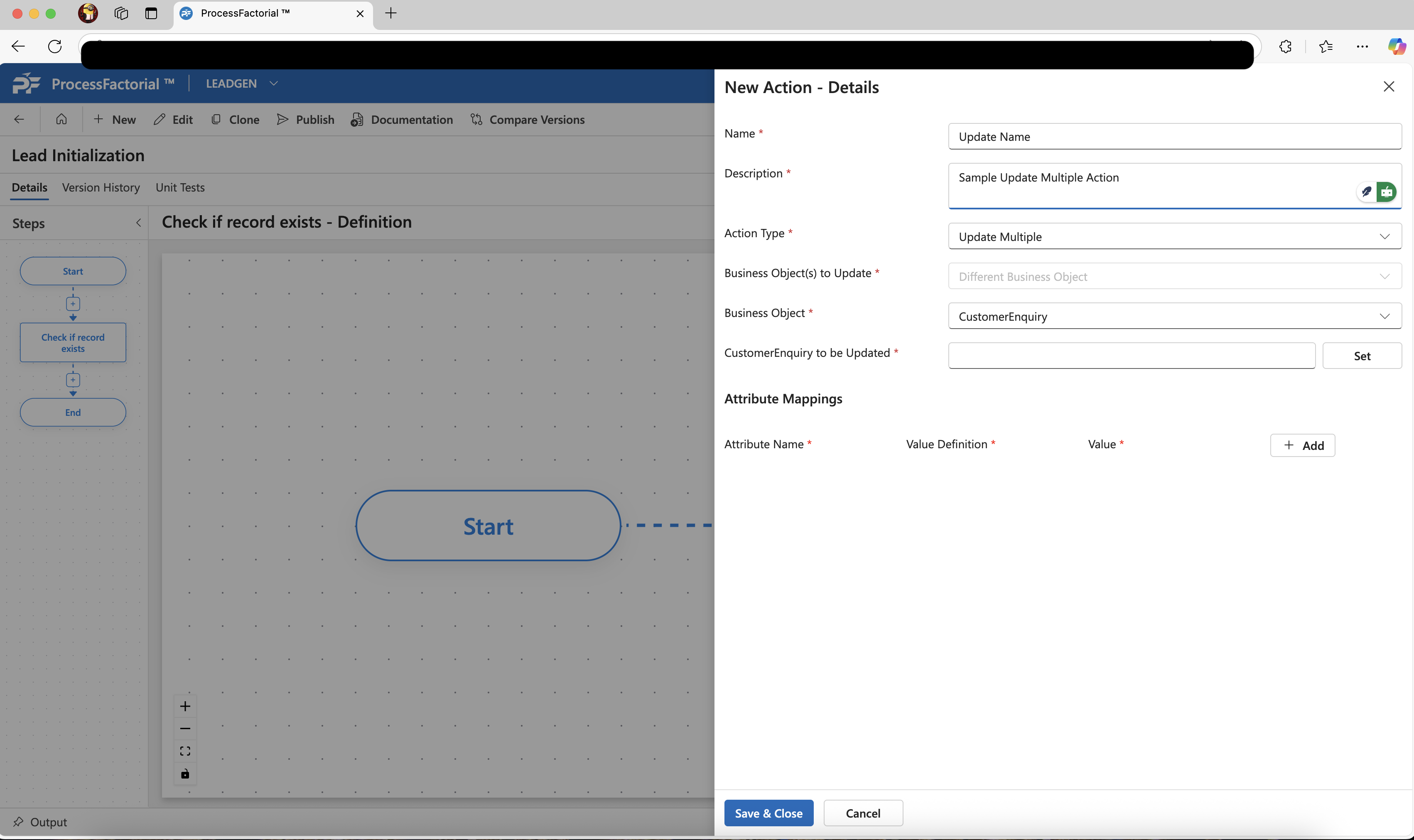
-
After choosing the Business Object, define the selection query (which appears below the
Business Objectfield) to filter the records by clicking on theSetbutton next to the text box.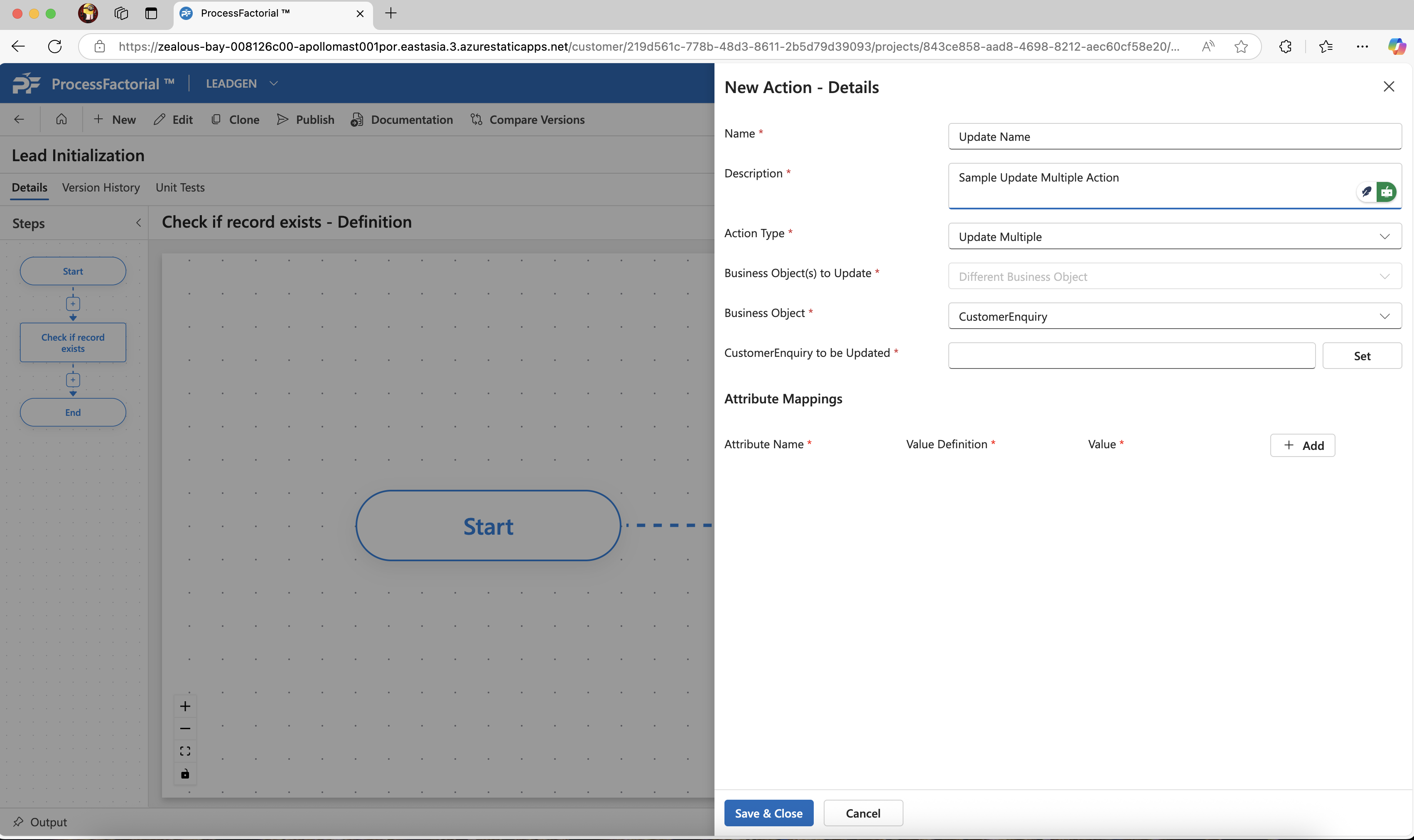
-
In the slide-out panel, fill in the basic details of
NameandDescription. Choose a Business Object to query. After selecting the business object, click the+ Addbutton below it to add conditions based on the attributes that define the query.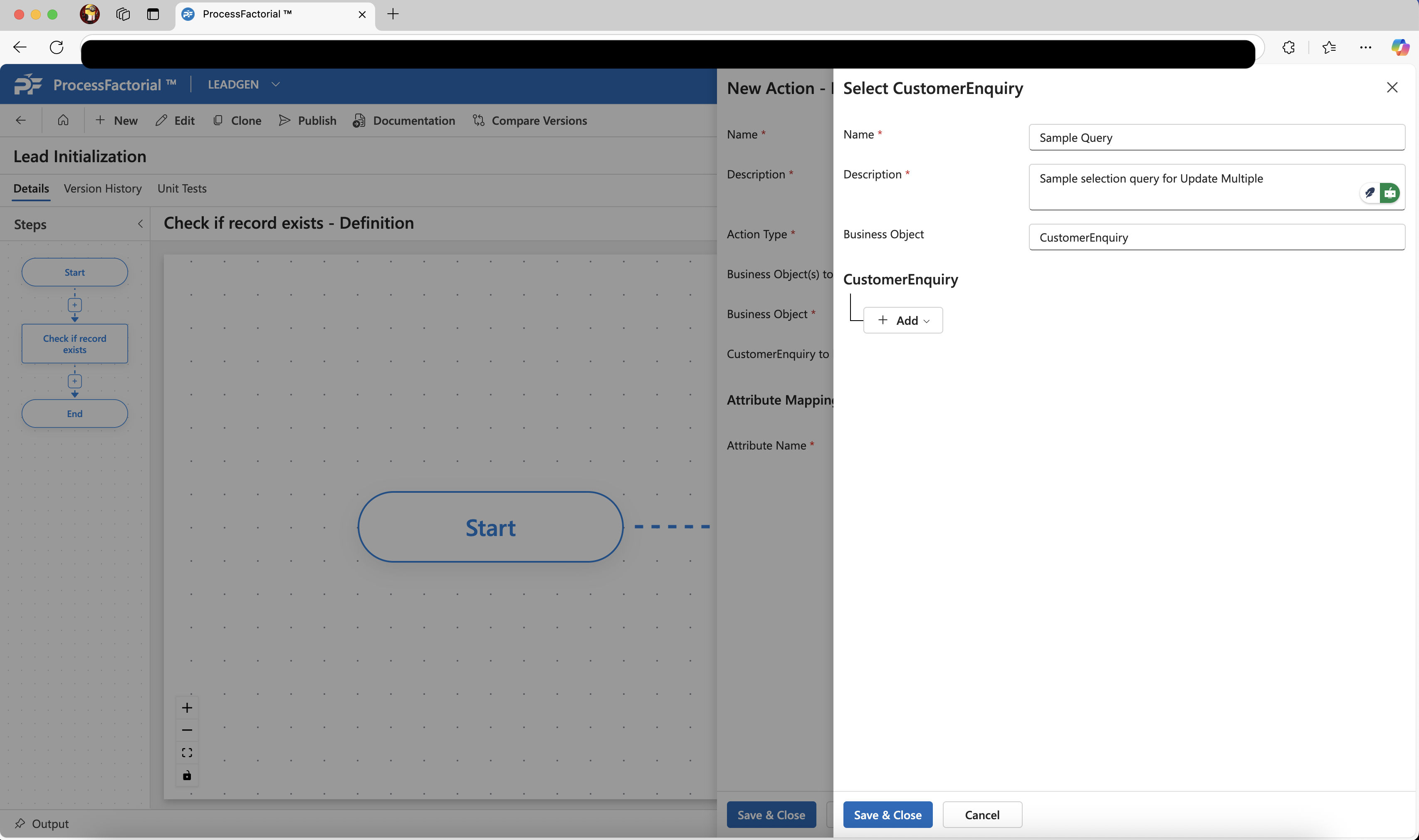
-
Once the query has been defined click on
Save & Closeto save the selection query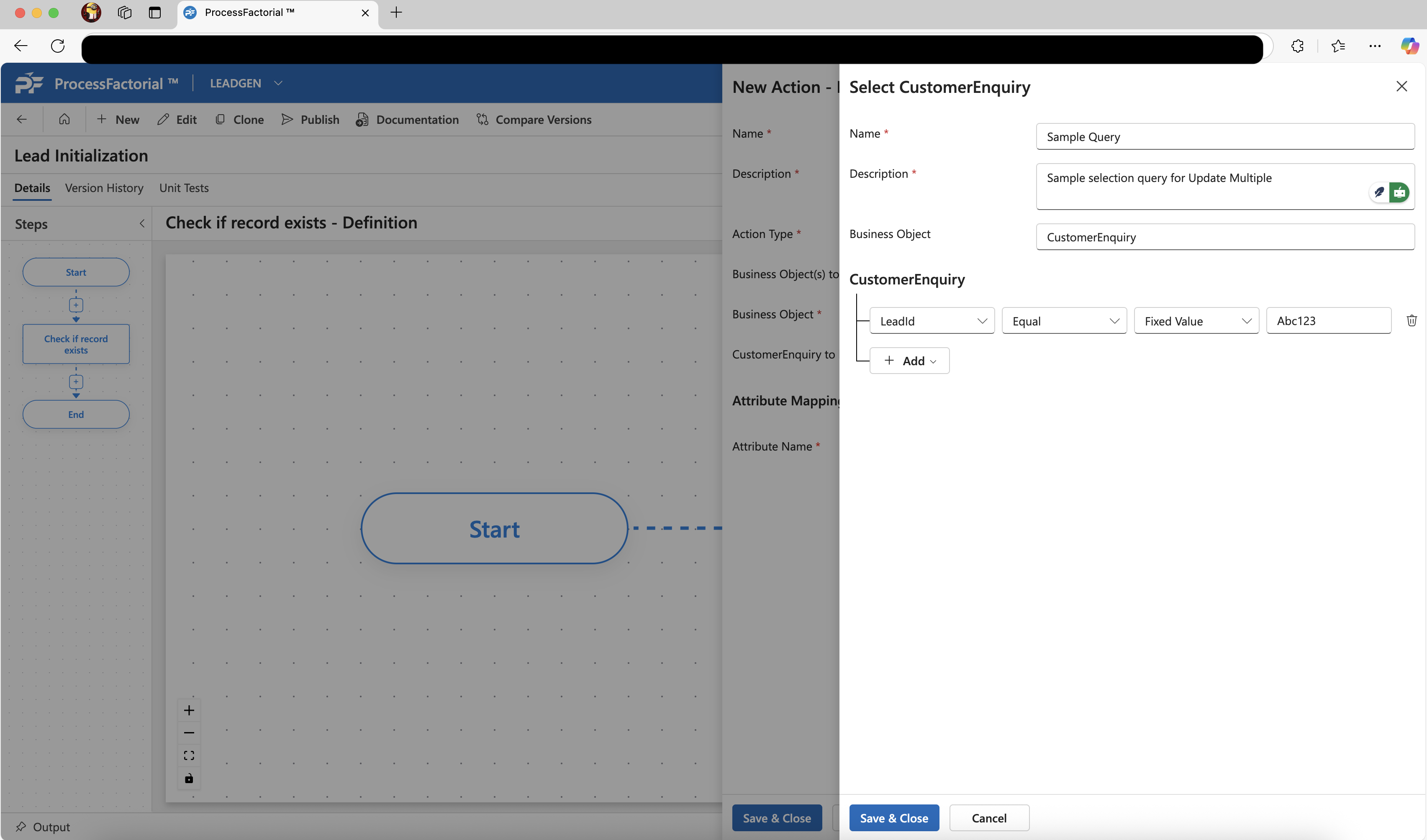
-
Add each of the attributes to be updated in the Attribute Mappings section, and provide the associated values that need to be updated.
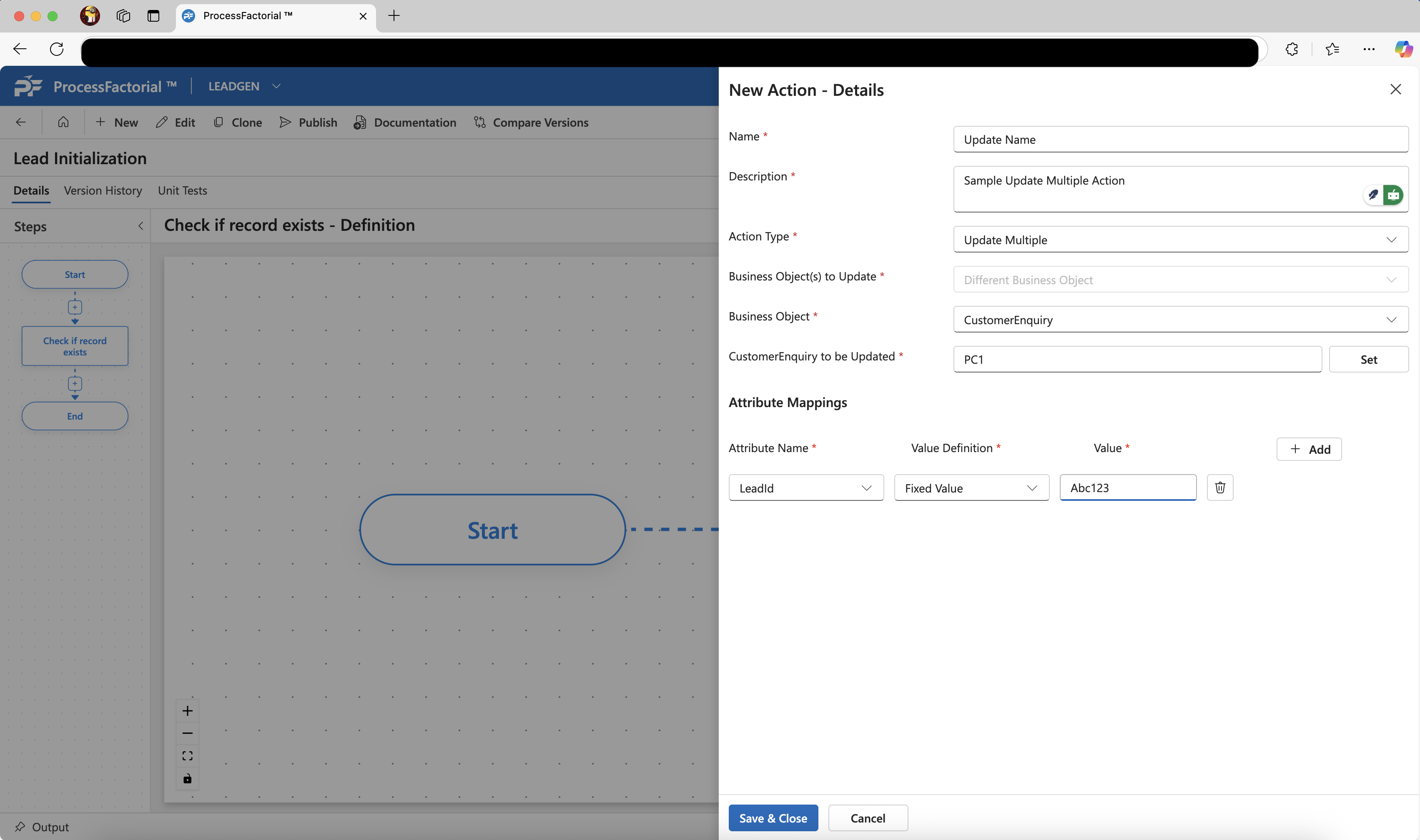
-
Click on
Save & Closeto save the action.