Create Multiple
This page outlines how to configure an Flow Action on a Factorial Flow to create a record on the target Data Store
An example of this is creating multiple attribute records against a parent Account.
Add a Create Multiple Action
- Follow the instructions on how to Manage Actions
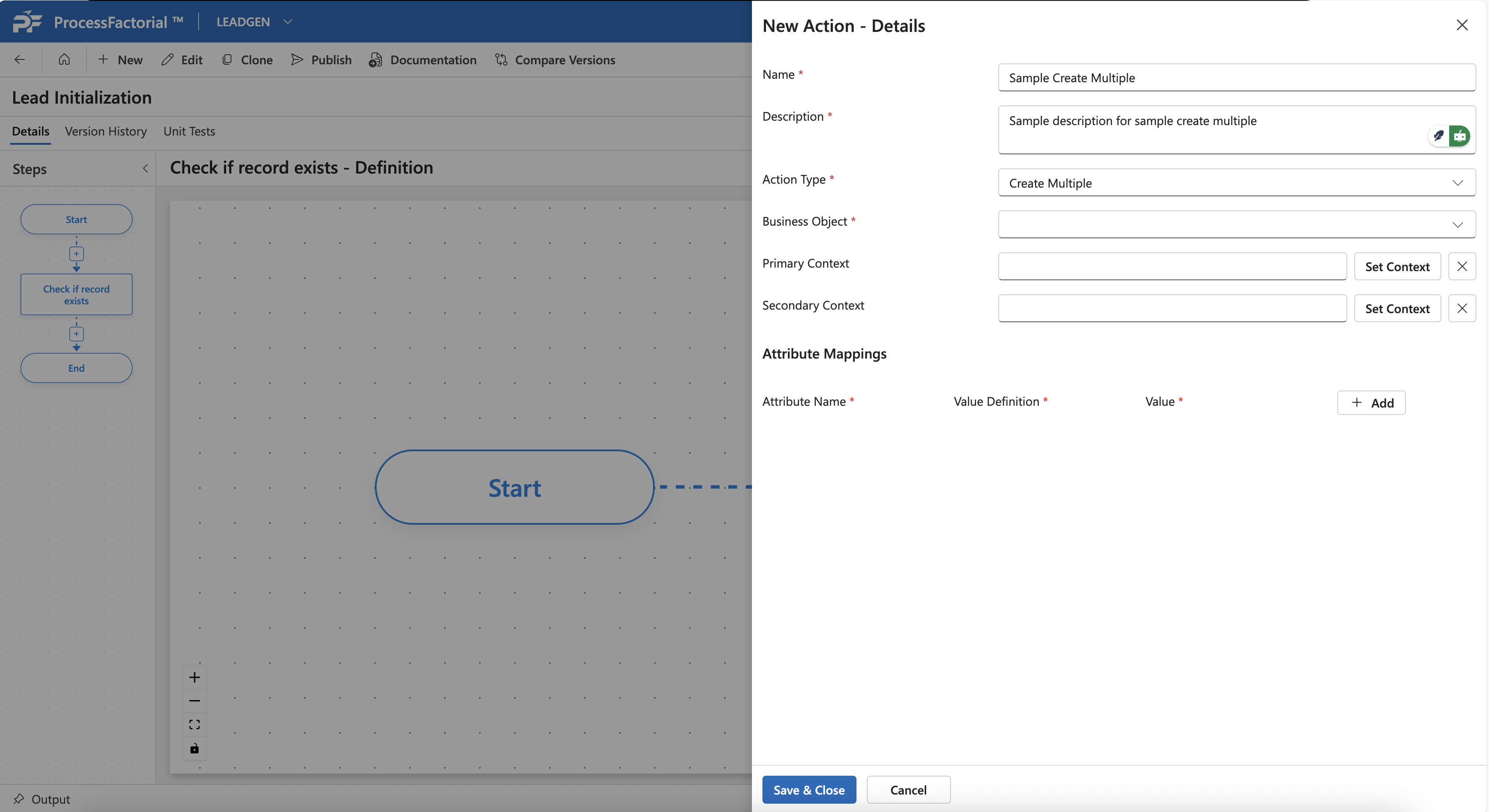
- Enter Basic Flow Action Details that is common for all the Flow Action elements
-
The Business Object field will be the type of record we want to create, such as a Contact record
-
The
Primary Contextrefers to the the primary selection query for filtering records in the Business Object, while theSecondary Contextrefers to the additional query that can further filter the records in the Business Object - Click on the
Setbutton next toPrimary ContextandSecondary Contextto define the respective selection queries. - In the
Primary Context/Secondary contextpanel, enter the basicNameandDescriptiondetails followed by selection of the Business Object to query on. - Click on the
+ Addbutton beneath the Business Object drop-down provide query attributes and their values. -
Save & Closeto exit the panel.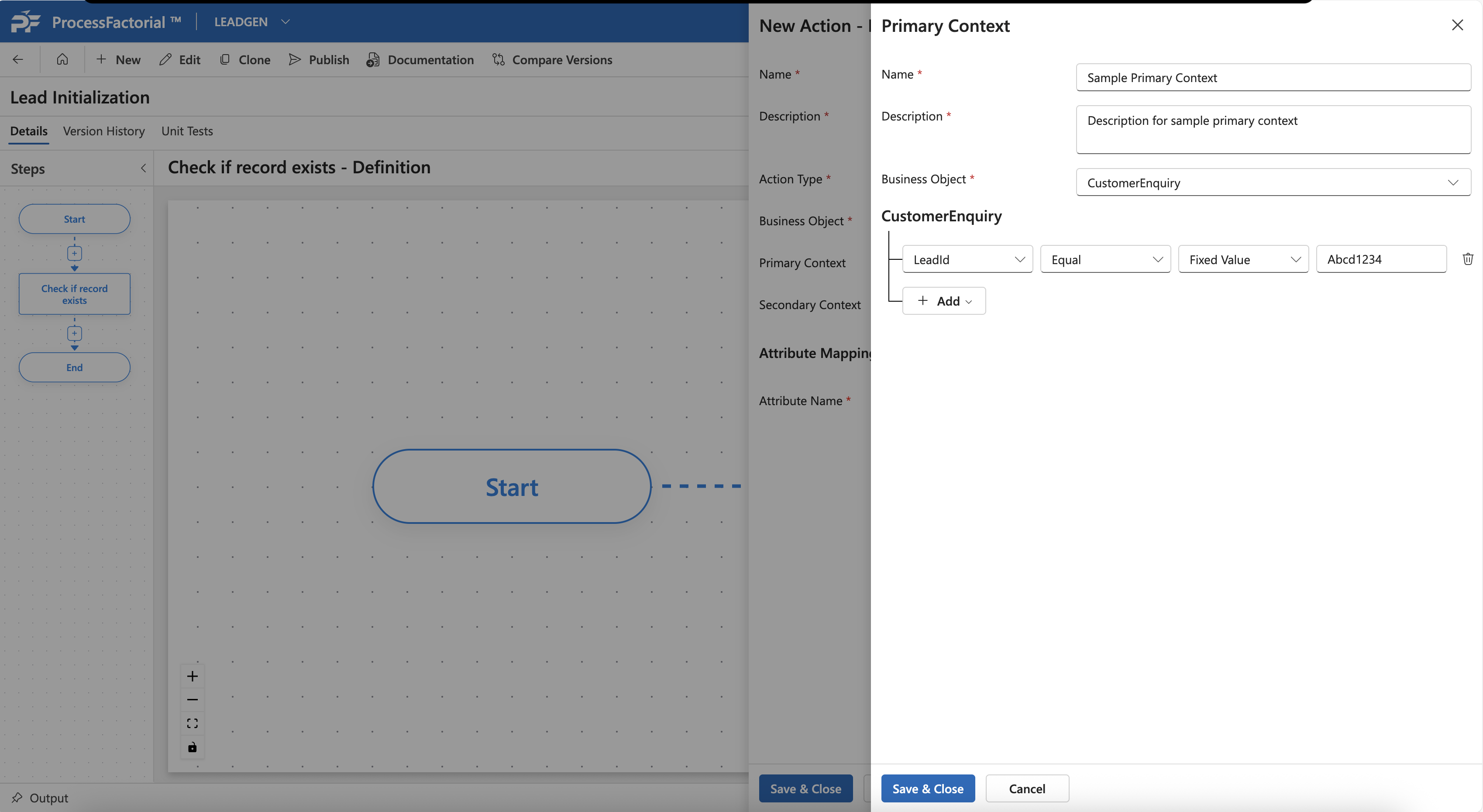
-
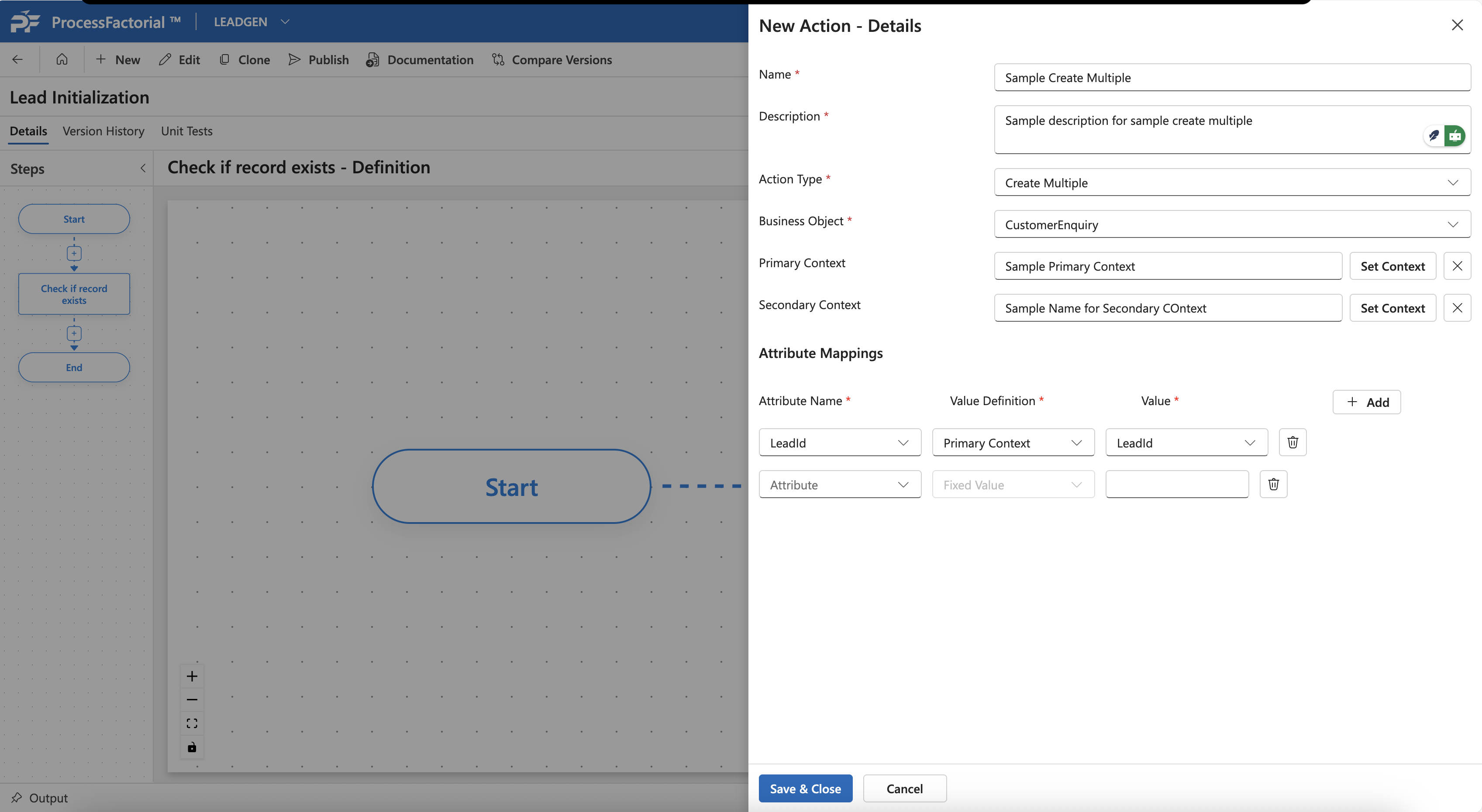
Add each of the fields to be updated in the Attribute Mappings section.
-
Save and close. The action will now be added to the canvas.