Manage Customer
This page outlines how to create and manage an NPO Customer on the ProcessFactorial Portal
Note
When creating a new customer, the current logged on user will automatically become the administrator of this new customer.
Create a new Customer
- Log on to the ProcessFactorial Portal
-
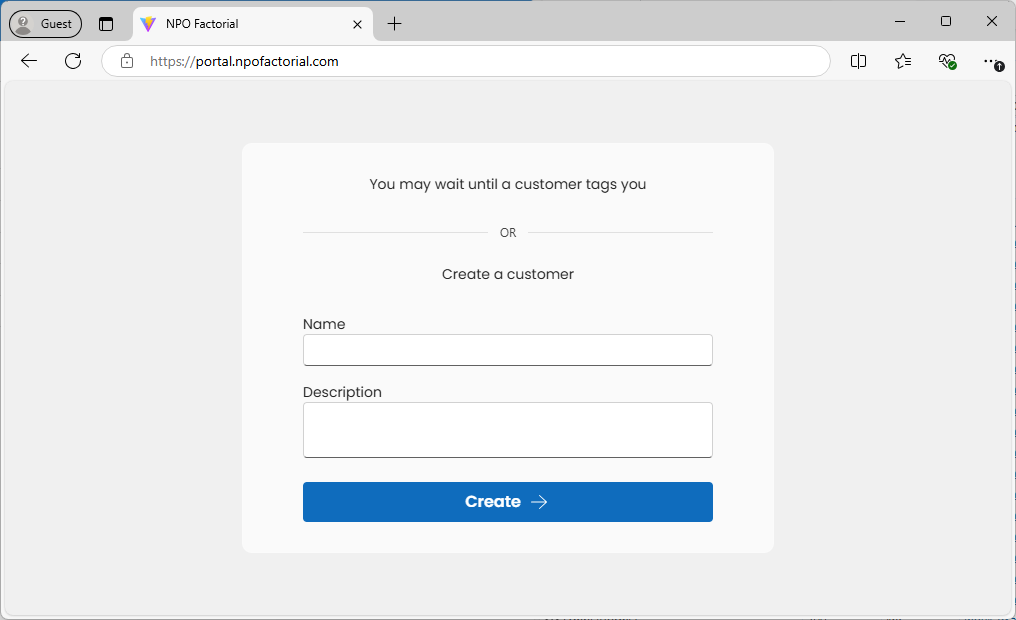
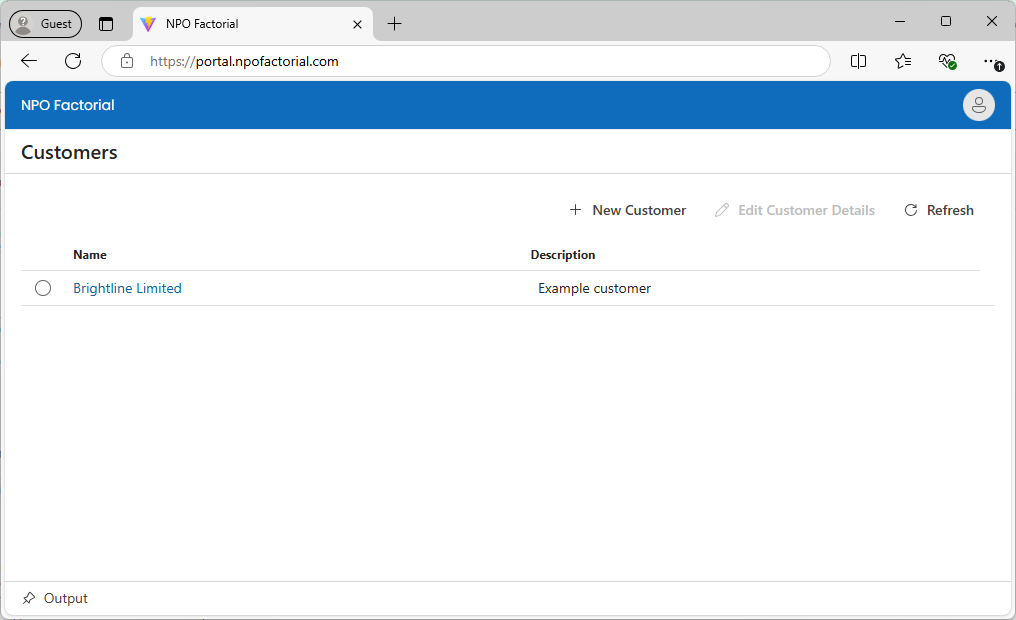
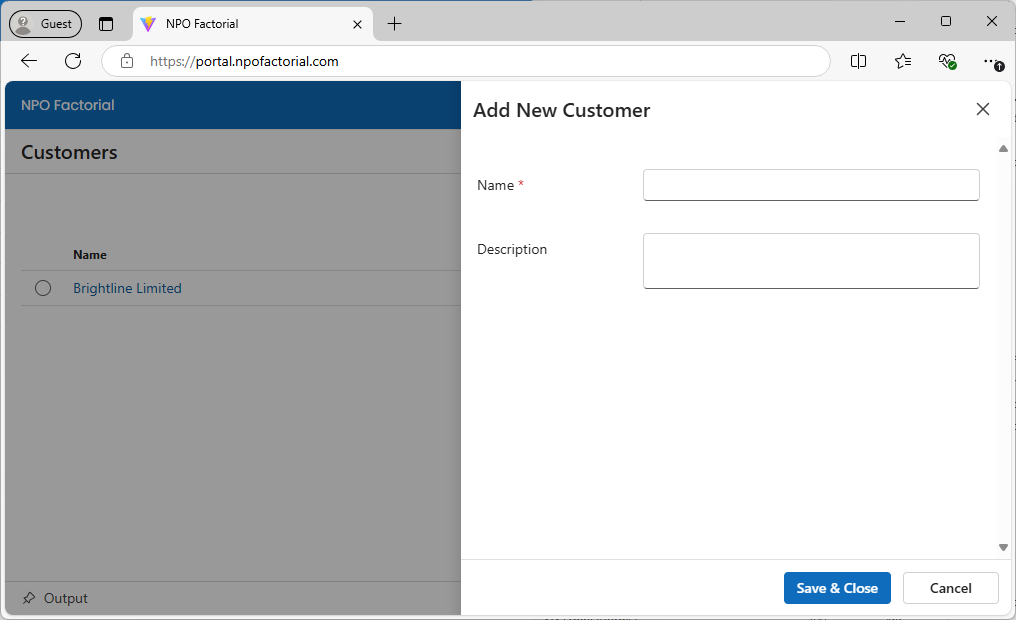
If your user has access to existing customers, these customers will be visible in a grid (first image below), in this case, give the customer a name and description and click the New Customer button. Otherwise the user will be prompted to either create a new customer or to wait for access to be granted by an administrator to an existing customer (second image below). In this case click the Create button to continue
If your user has no assigned customers, this is the first customer that is being created:
If your user has access to some customers, this screen will appear. click the New Customer button and give the customer a name and description:
Manage existing customer
- Log on to the ProcessFactorial Portal
-
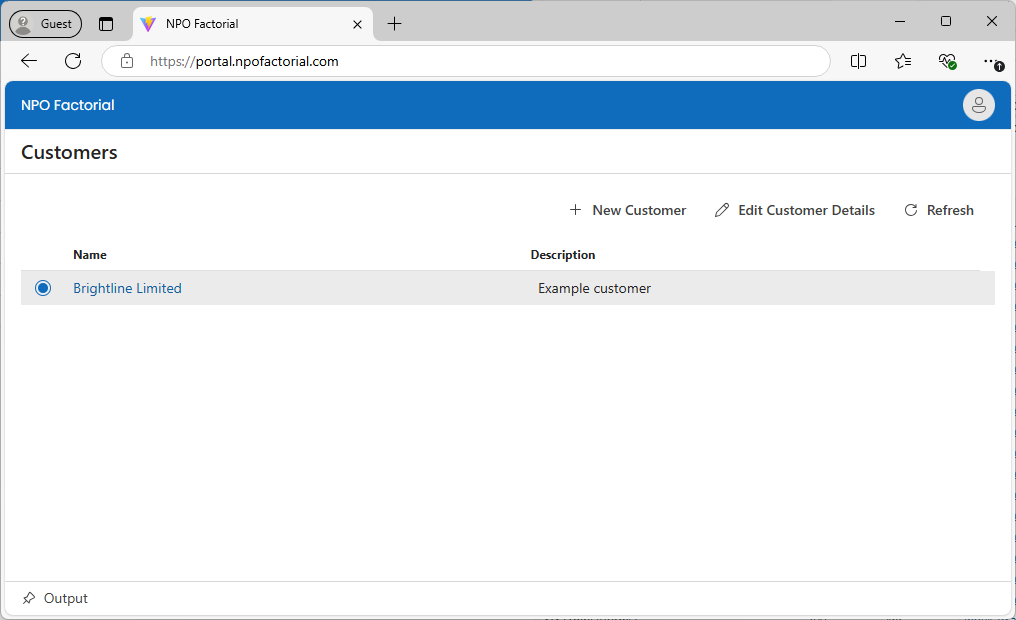
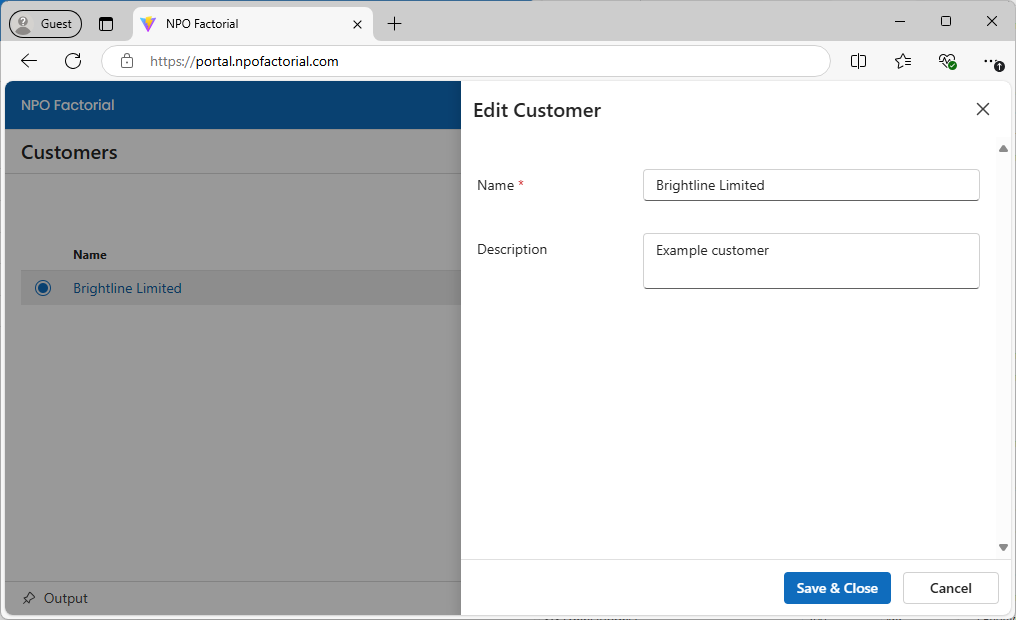
Select the customer you wish to edit and click the Edit Customer Details button
Customer Settings
Customer settings for an individual customer can be configured as follows:
-
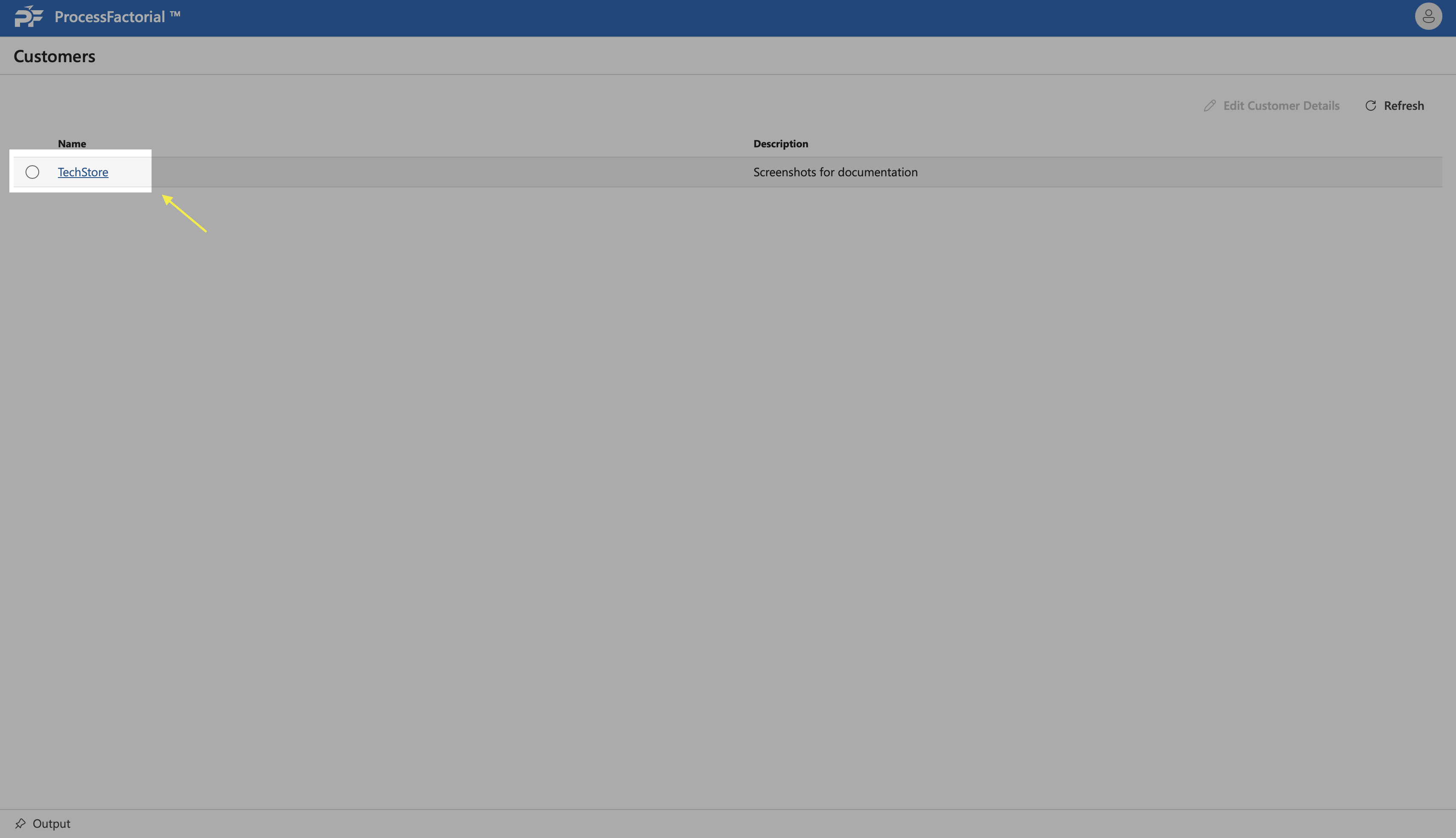
In the Customers page that lists all existing customers, click on the customer that needs to be configured. This opens the customer specific page, within which all the projects and users associated with the customer are listed.
-
Click on the
Customer Settingsbutton at the top-left, to open up the drawer panel for the settings.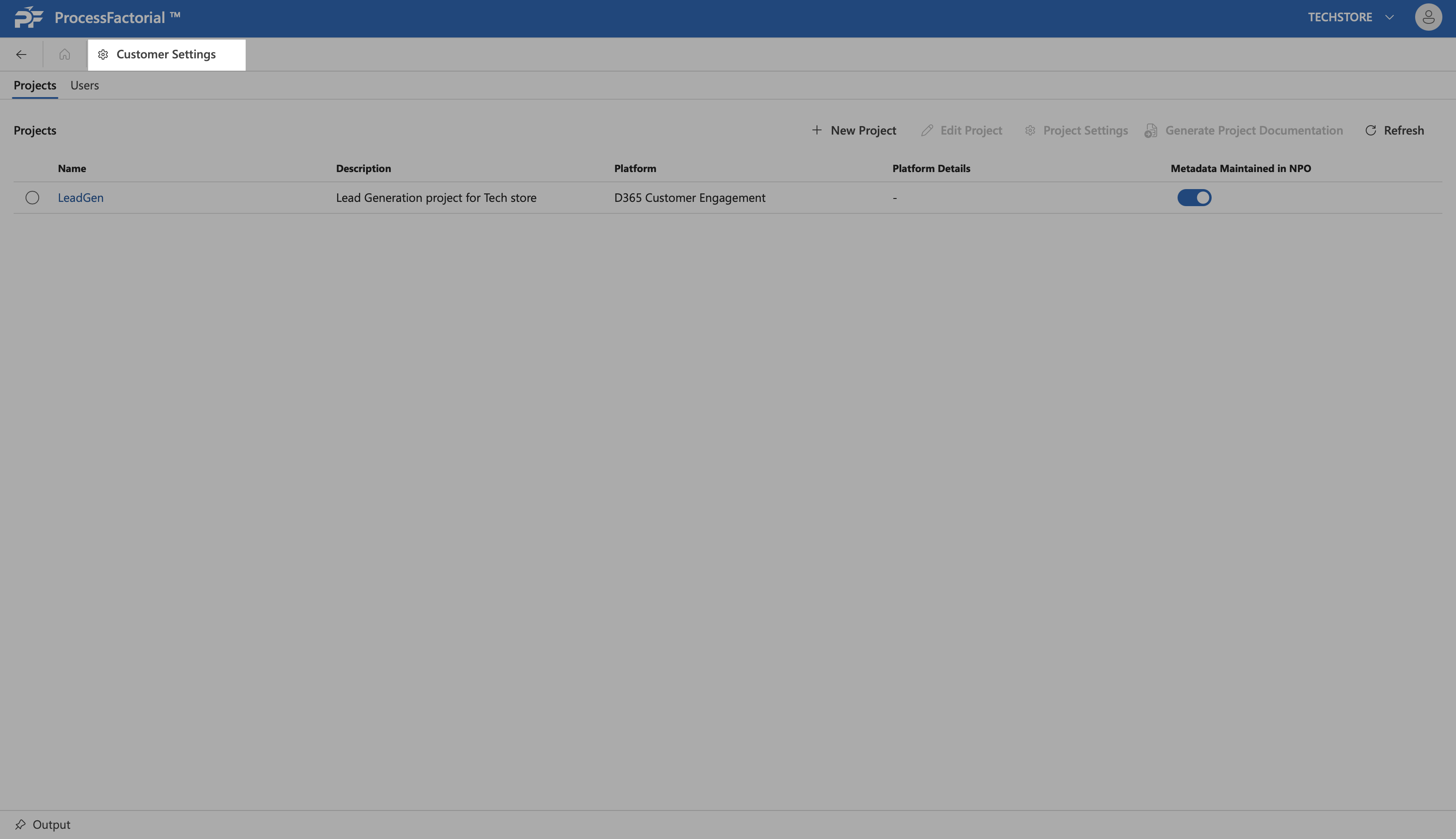
-
Make changes to the settings as needed. Refer to the below table for details regarding the field(s) in the panel.
Field Description Log Level The appropriate event level for which logs need to be recorded for the customer 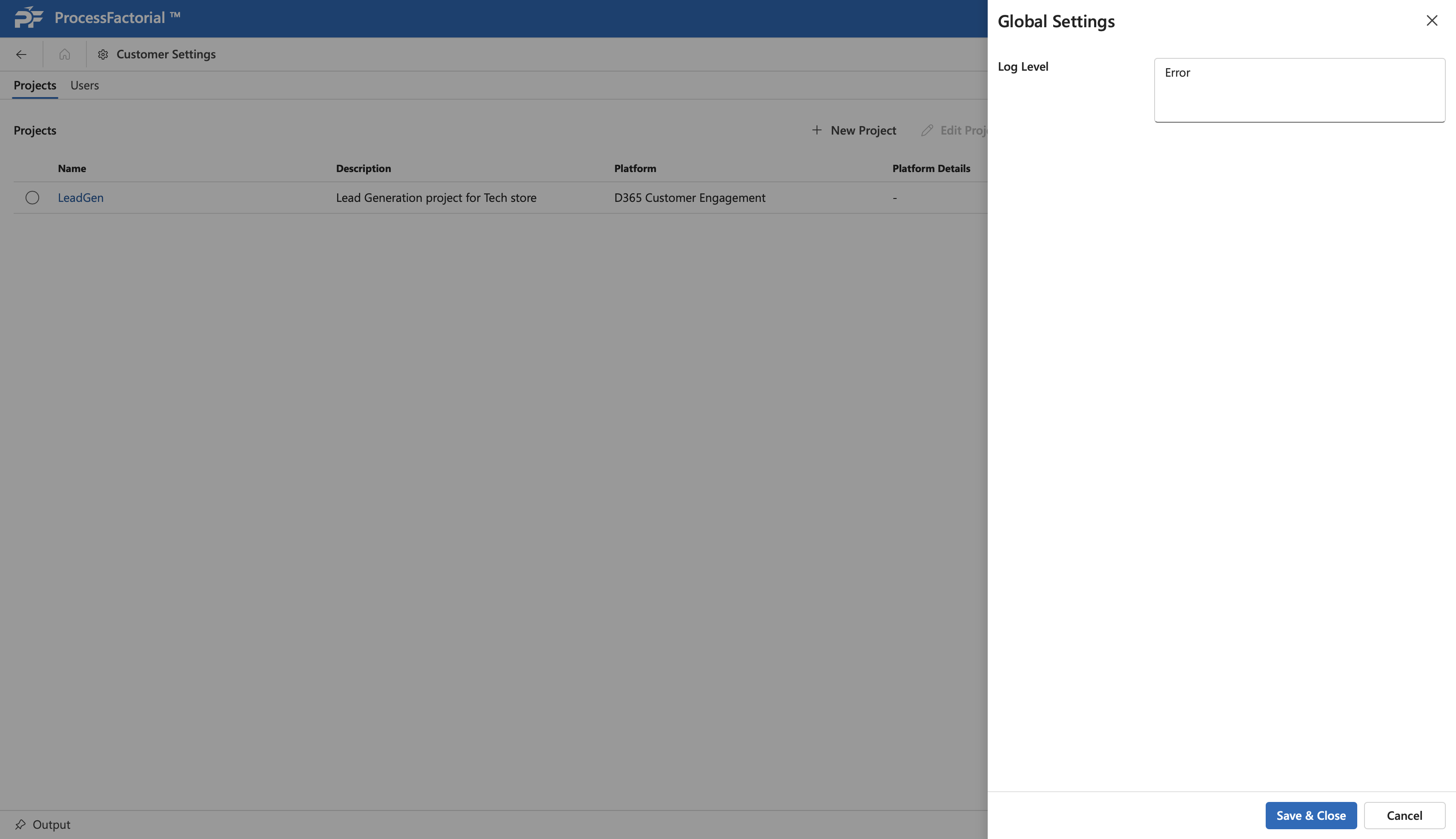
-
Click
Save & Closeto save the changes and exit panel, orCancelto discard changes and exit panel.
Return to All Customers
If you wish to return to the list of all your customers:
- In the top right corner, click on the dropdown next to the User icon
- Select All Customers
Previous: Log in to the Portal | Next: Manage Project