Link to Environment
This page outlines how to link your NPO Project on the ProcessFactorial Portal to your transactional Data Store
Linking your environment will allow you to sync Transactional Metadata between your Data Store and ProcessFactorial Portal This can then me used to create your Business Processes and Factorial Forms
Link to the Default Environment
- Log on to the ProcessFactorial Portal
- Open up the customer by clicking on the hyperlink of the customer name
- Open up the project by clicking on the hyperlink of the project name
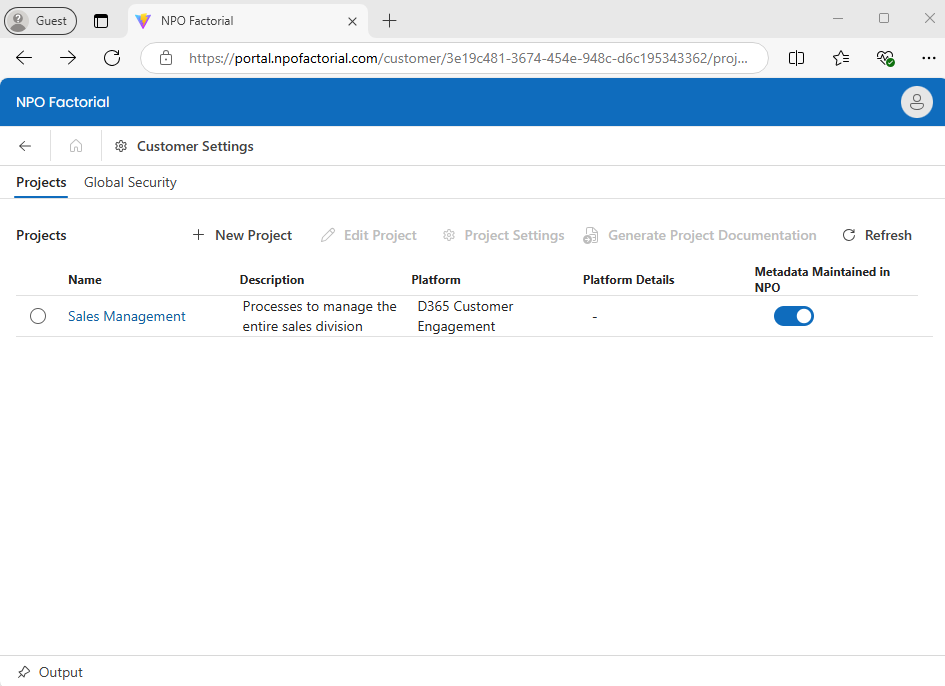
-
Click on the Environments tab, select the Default Environment and click Edit Environment
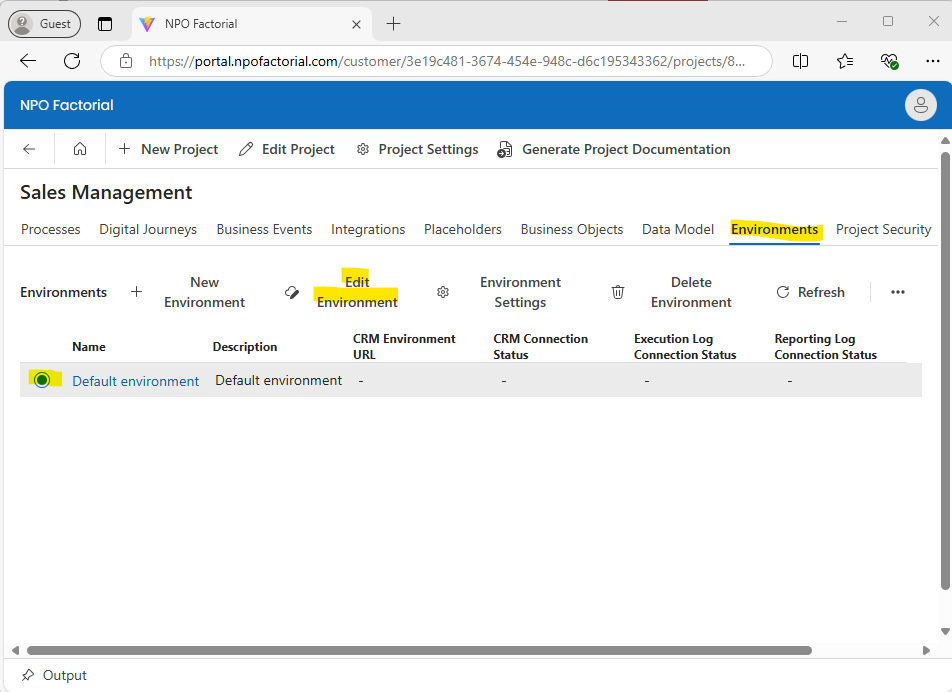
-
Populate the Connection String to your target data store and click Save
Note
When updating the connection string, the ProcessFactorial Portal will automatically attempt to connect to the Data Store If it fails to connect, it will display an error to the user.
This table outlines the options available
Field Purpose Name The name of the default metadata environment. If your project uses multiple environments, we suggest that you rename this environment to Development Environment Description A description to help identify the purpose of the environment CRM Connection String This is the Connection String of Data Store you are currently using to store your transactional data such as customers, contacts, sales, etc. Execution Storage Connection String Only update if you wish to use your own storage for storing execution data for this environment Reporting Storage Connection String Only update if you wish to use your own storage for storing execution data for this environment -
Click Save & Close
Previous: Manage Project | Next: Sync Metadata