Throttling Services
Introduction
The entire ProcessFactorial platform is scalable to the extent that Azure can scale. See Performance Considerations for scaling Azure infrastructure.
There are scenarios where we want to artificially throttle the platform to protect other services outside the ProcessFactorial platform though. For example, if your data store has request limits or if you rely on an external integration service that is not scalable or is prone to fall over under load.
This article outlines how to throttle specific aspects of ProcessFactorial to protect other external services.
The ideal Throttling strategy will involve the combination of the settings below. The following are the recommended starting values:
| Setting | Initial Value | Comment |
|---|---|---|
| Polling Cycle | 15 seconds | This can be made much longer, maybe up to 5 minutes, if concerns exist for load on the Data Store, but it is unlikely to have any significant load impact if left at 15 seconds |
| Trigger Cycle | 15 seconds | This value is a critical part of overall service protection, along with Per Flow Throttling. We recommend that this value is between 15s and 1 minute. |
| Per Flow Throttling | 25 records | This is the number of individual flow executions, per flow, that will start every Trigger Cycle. If concerns arise where downstream services could be flooded, this number should be dropped down to a manageable number. This need to be greater than 0. |
Platform Level Throttling
Polling Cycle
Note
This is a Platform level setting, so it will affect all Flows on all NPO Environments that are processed via this Polling Service
The polling service will trigger roughly every 15 seconds. This is referred to as a Polling Cycle This typically triggers every 15s, but can be altered in Azure:
- Open the Polling Engine (npobp_poll)
- Browse to Settings -> triggerCRONPolling
- Set the value to an appropriate value (Timer trigger for Azure Functions | Microsoft Learn).
Trigger Cycle
During a Polling Cycle, the Polling Engine will make a decision as to whether or not it should execute any given trigger query, referred to as a Trigger Cycle The decision to delay the execution is a calculation based on recent returned results. It will typically be locked between every 15s and 120s.
Volume Manager Cycle
Note
This is a Platform level setting, so it will affect all Flows on all NPO Environments that are processed via this Polling Service
The Volume Manager Cycle will, similar to the #Polling Cycle, trigger every 15 seconds by default. During each cycle, it will evaluate every Flow that has at least one record in the Volume Manager queue for that Factorial Flow It will then begin the flow execution of the next x (#Flow Throttling) records from this queue for every Factorial Flow
So if there are 3 active flows, each with 10 records in the queue and x (#Flow Throttling) is 5, then 5 from each flow, so 15 flow executions will start this cycle.
To alter this frequency:
- Open the Polling Engine (npobp_poll)
- Browse to Settings -> triggerCRONVolumeManager
- Set the value to an appropriate value (Timer trigger for Azure Functions | Microsoft Learn).
Flow Throttling
Per Flow Throttling
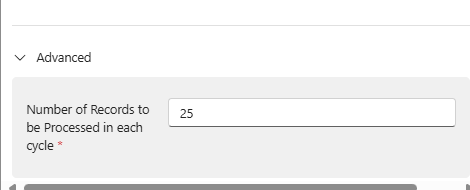
Each individual Factorial Flow can be configured to only start a specific number of processes per cycle. This value is 25 by default. This can be configured for each Flow individually.
This can be changed from the ProcessFactorial Portal: 1. Open the relevant Factorial Flow configuration 2. In the ribbon, click Edit 3. In the drawer window, expand the Advanced rollup and update the setting